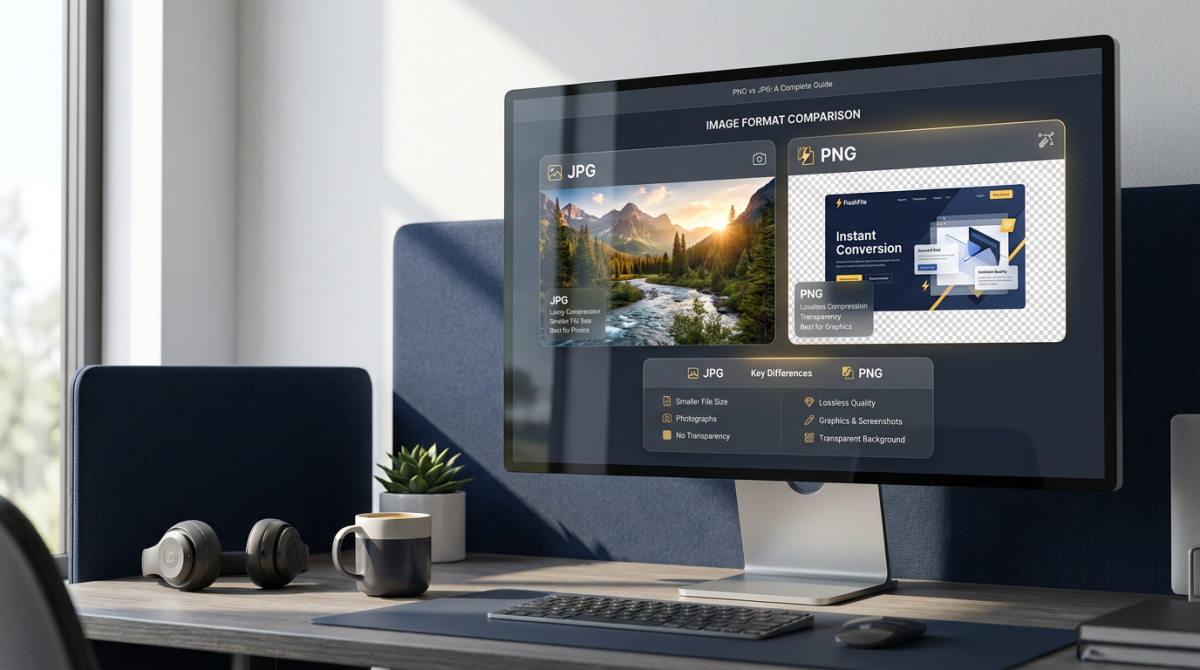
If you have ever wondered what is PNG and JPG, you are not alone. These two formats power almost every photo, logo, screenshot, and product image on the internet — yet they behave very differently under the hood.
This complete guide explains what is PNG, what is JPG, the real difference between PNG and JPG, how compression and transparency work, and when to choose PNG or JPG (also written PNG vs JPEG). You will also learn how WebP fits in, how to convert formats safely, and how to shrink files without wrecking quality using FlashFile's free image tools.
For a decision-focused format picker, read PNG vs JPG: Which Image Format Should You Use?. For a technical side-by-side, see Difference Between PNG and JPG.
Quick Answer: PNG vs JPG
- JPG / JPEG — lossy compression, smaller files, best for photographs and continuous-tone images. No transparency.
- PNG — lossless compression, sharper edges and text, supports transparent backgrounds. Best for logos, UI, screenshots, and graphics.
- Rule of thumb — photos → JPG (or WebP); logos, icons, screenshots, overlays → PNG (or WebP with alpha).
What Is JPG?
JPG (also called JPEG) is a raster JPG image format designed for photographs. It uses lossy compression: the encoder discards visual information that human eyes are less likely to notice so the file becomes much smaller.
JPG became the default photo format on cameras, phones, social networks, and the open web because a well-tuned JPEG can look excellent at a fraction of the size of an uncompressed bitmap. Quality is controlled by a compression setting — higher quality keeps more detail; lower quality shrinks the file but can introduce blockiness, banding, or halos around edges.
Strengths of the JPG image format
- Excellent size-to-quality ratio for real-world photos
- Universal support in browsers, apps, printers, and devices
- Ideal for galleries, blog heroes, product photos, and email
- Easy to tune with quality sliders and target-size compressors
Limitations of JPG
- No transparency — backgrounds are always opaque
- Lossy compression can soften text, icons, and hard edges
- Repeated open–edit–save cycles compound quality loss
- Not ideal as a master format for logos or UI assets
What Is PNG?
PNG (Portable Network Graphics) is a lossless PNG image format. When you save a PNG, pixel values are preserved — perfect for graphics that must stay sharp. PNG also supports a full alpha channel for transparency, which is why designers rely on it for logos, overlays, stickers, and interface components.
The trade-off is file size. A photographic PNG is often several times larger than a well-compressed JPG of the same dimensions. That is why the PNG or JPG decision should follow content type, not habit.
Strengths of the PNG image format
- Lossless quality — safe to re-save during editing
- True transparency (alpha) for non-rectangular graphics
- Crisp text, lines, icons, and UI chrome
- Excellent for screenshots and diagrams
Limitations of PNG
- Larger files for complex photographs
- Can slow page loads if used for every photo on a site
- Not always the best choice for print photography workflows
PNG vs JPG Feature Comparison Table
Use this table whenever you need a fast answer to PNG vs JPG or JPG vs PNG for a specific asset.
| Feature | JPG / JPEG | PNG |
|---|---|---|
| Full name | Joint Photographic Experts Group | Portable Network Graphics |
| Compression | Lossy (discards detail) | Lossless (keeps every pixel) |
| Typical file size | Smaller for photos | Larger for complex images |
| Transparency | No | Yes (alpha channel) |
| Best for | Photographs, gradients | Logos, UI, screenshots, text |
| Sharp edges / text | Can blur or ring | Excellent |
| Color depth | 24-bit color | 24-bit + optional alpha |
| Edit friendliness | Degrades if re-saved often | Safe to re-save |
| Web performance | Strong default for photos | Use sparingly on large photos |
| Animation | No (use GIF/WebP/video) | APNG possible, rarely used |
Compression: Lossy vs Lossless
Compression is the core of the difference between PNG and JPG.
JPG lossy compression analyzes blocks of pixels and throws away high-frequency detail. At moderate settings the result still looks natural for photos. Push quality too low and you will see 8×8 blocks, muddy colors, and ringing around high-contrast edges.
PNG lossless compression finds patterns and encodes them more efficiently without changing pixel values. You get perfect fidelity for graphics — but photographic noise and gradients do not compress as aggressively, so file size stays higher.
Image Quality and File Size
Quality and file size pull in opposite directions. A 4000×3000 camera photo saved as PNG can be many megabytes; the same frame as a quality-80 JPG may be a few hundred kilobytes with almost no visible difference on a phone screen.
For logos and UI, the opposite is true: a small PNG with transparency often looks cleaner than a JPG of similar dimensions, and the absolute byte count is still modest because the graphic is simple. Always judge quality at the size users will actually see — not only at 100% zoom on a design monitor.
Transparency: Why PNG Wins for Graphics
Transparency is the feature that most often forces a PNG vs JPEG decision. PNG can store per-pixel opacity so a logo sits cleanly on any background color or photo. JPG cannot. If you flatten a transparent PNG to JPG, transparent pixels become a solid color (usually white or black). When you need soft shadows, rounded badges, or cut-out product shots, stay on PNG — or use WebP with alpha.
When to Use JPG
- Photographs from cameras and phones
- Blog and marketing hero images
- Product photos without cut-out backgrounds
- Large galleries where bandwidth matters
- Email newsletters and social feed posts
- Any continuous-tone image without transparency
When to Use PNG
- Logos, icons, and brand marks
- UI elements, buttons, and app chrome
- Screenshots with text and sharp edges
- Infographics and diagrams
- Images that need transparent backgrounds
- Master files you will edit and re-export often
How to Reduce PNG and JPG File Size
Smaller images load faster and rank better for Core Web Vitals. Follow this order:
- Resize dimensions first. A 4000px-wide photo on a 1200px content column wastes bandwidth. Use FlashFile Image Resizer to set exact width and height before compression.
- Compress with a quality target. Open the Image Compressor to shrink JPG, PNG, or WebP while previewing the result. For strict limits, try Compress to 100KB or 200KB tools.
- Pick the right format. Photos → JPG/WebP. Graphics with transparency → PNG/WebP. Do not force photographic PNGs when a JPG looks identical.
- Strip unnecessary metadata when privacy or a few extra kilobytes matter (EXIF/GPS).
All FlashFile tools run in your browser — your files are not uploaded to a server for processing.
Can You Convert JPG to PNG?
Yes. Converting JPG to PNG is straightforward with an Image Converter. Remember: conversion cannot restore detail that JPG compression already discarded. The PNG will often be larger than the original JPG. Convert to PNG when you need a lossless working copy for further edits, or when a workflow expects PNG — not because you expect “better quality” from the same pixels.
Can You Convert PNG to JPG?
Yes — and it is one of the most common ways to shrink graphics that do not need transparency. Use FlashFile Image Converter to flatten PNG to JPG in the browser. Transparent areas become a solid background color, so preview carefully. After conversion, run the compressor if you still need a smaller file.
PNG vs JPG vs WebP
WebP is a modern format that often beats both PNG and JPG on file size at similar visual quality. It supports lossy and lossless modes plus transparency. For a deeper decision framework — including SEO and website performance — see PNG vs JPG: Which Image Format Should You Use?.
Practical approach in 2026: serve WebP (or AVIF where available) for delivery when your stack allows it, keep PNG masters for transparent graphics, and keep high-quality JPG masters for photography archives.
Common Mistakes
- Saving full-resolution camera photos as PNG for a blog
- Using JPG for logos and wondering why edges look dirty
- Uploading multi-megabyte screenshots without resizing
- Re-exporting the same JPG dozens of times during edits
- Expecting JPG→PNG conversion to “fix” quality
- Ignoring WebP when your audience is on modern browsers
Frequently Asked Questions
What is PNG and JPG?
PNG and JPG are the two most common raster image formats on the web. JPG (JPEG) uses lossy compression ideal for photographs. PNG uses lossless compression and supports transparency, making it ideal for logos, UI, and screenshots.
What is the main difference between PNG and JPG?
JPG discards some image data to shrink file size (lossy). PNG keeps every pixel (lossless) and can include a transparent background. JPG files are usually smaller for photos; PNG files stay sharper for graphics and text.
Is PNG better than JPG?
Neither is always better. Use JPG for photos and large continuous-tone images. Use PNG for logos, icons, screenshots, text, and anything that needs a transparent background.
Does JPG support transparency?
No. Standard JPG has no alpha channel. Transparent areas become solid colors when you convert PNG to JPG. Use PNG or WebP when you need see-through backgrounds.
Can you convert JPG to PNG and PNG to JPG?
Yes. Converting JPG to PNG does not restore lost detail, but it can be useful for editing workflows. Converting PNG to JPG reduces size for photos but removes transparency. FlashFile Image Converter does both client-side in your browser.
Which format is better for websites?
Use JPG (or WebP) for photographs and hero images. Use PNG for logos, icons, UI chrome, and graphics with sharp edges or text. Mixing formats by asset type is the professional default.
Is WebP better than PNG and JPG?
WebP often delivers smaller files than both PNG and JPG at similar visual quality, and it supports transparency. Modern browsers handle WebP well; keep PNG/JPG when you need maximum compatibility.
How do I reduce PNG and JPG file size safely?
Resize oversized dimensions first, then compress with a quality target. Use FlashFile Image Resizer and Image Compressor — both run 100% in your browser so files never leave your device.
Conclusion
What is PNG and JPG? They are complementary image formats: JPG for efficient photographs, PNG for sharp graphics and transparency. Master the PNG vs JPG trade-offs — compression, quality, transparency, and file size — and you will ship faster pages and cleaner designs.
Need a decision guide? Continue with PNG vs JPG: Which Image Format Should You Use?. For technical trade-offs, see Difference Between PNG and JPG: A Complete Guide. Ready to put this into practice? Convert formats with Image Converter, shrink files with Image Compressor, and set exact dimensions with Image Resizer. Everything runs client-side on FlashFile.
Related FlashFile Tools
Free client-side tools mentioned in this guide — no uploads required for conversion.
Convert and optimize PNG & JPG free
Switch formats, compress for the web, and resize images privately in your browser.
Related Articles
Keep reading — more PDF and image conversion guides from the FlashFile blog.
 Image Tools
Difference Between PNG and JPG: A Complete Guide
Learn the difference between PNG and JPG — quality, compression, file size, transparency, and when to use each format.
Read More Image Tools
PNG vs JPG: Which Image Format Should You Use?
PNG vs JPG explained — quality, compression, transparency, file size, and when to choose each format or WebP.
Read More Image & PDF Guides
How to Convert JPG to PDF on Windows: 5 Easy Methods
Learn how to convert JPG to PDF on Windows using Microsoft Print to PDF, Photos, Word, and online tools. Combine multiple JPG images into one PDF while preserving quality.
Read More