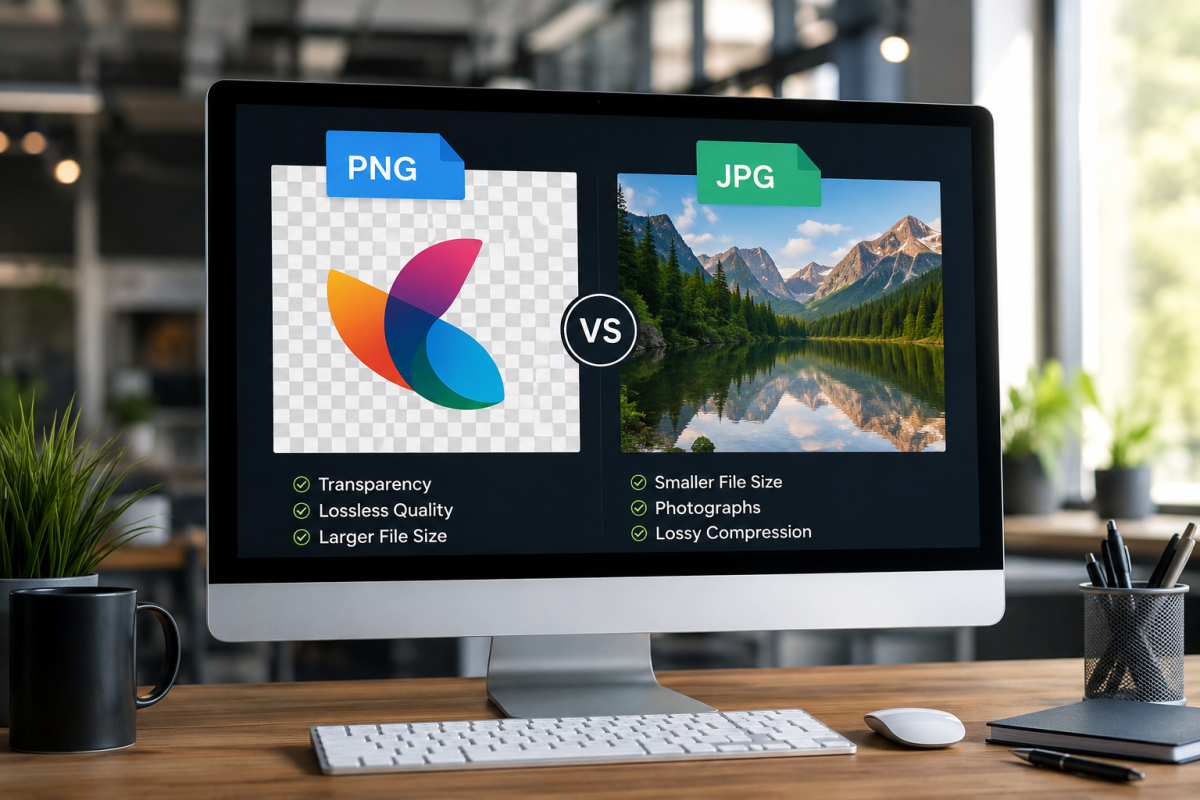
Choosing PNG vs JPG is a practical decision, not a loyalty test. The wrong format wastes bandwidth or softens edges; the right one keeps pages fast and graphics crisp. This guide answers which is better PNG or JPG for the job in front of you — photos, logos, screenshots, SEO, and social — so you can pick the best image format with confidence.
You will get a clear decision framework for JPG vs PNG, PNG or JPG, and PNG vs JPEG, plus when WebP is the smarter delivery choice. New to the formats themselves? Start with What Is PNG and JPG?. Need a deeper technical side-by-side? Read Difference Between PNG and JPG. FlashFile image tools process everything in your browser.
Quick Decision: PNG or JPG?
- Choose JPG for photographs, gradients, product shots without cut-outs, blog heroes, and any continuous-tone image where smaller size matters more than perfect pixel fidelity.
- Choose PNG for logos, icons, UI, screenshots, charts, text-heavy graphics, and anything that needs a transparent background.
- Choose WebP for modern web delivery when you want smaller files with quality close to JPG/PNG and optional transparency.
Feature Comparison Table
A fast reference when you are stuck between the JPG image format and the PNG image format.
| Feature | JPG / JPEG | PNG |
|---|---|---|
| Best default use | Photographs & lifestyle images | Graphics, logos, UI, screenshots |
| Compression | Lossy — smaller photos | Lossless — exact pixels |
| Transparency | No | Yes (alpha channel) |
| Typical photo size | Smaller | Larger |
| Sharp text / edges | Can soften or ring | Stays crisp |
| Re-editing | Quality drops if re-saved lossy | Safe to re-save |
| Web performance | Strong for photo-heavy pages | Use for graphics, not huge photos |
| Social / email photos | Usually preferred | Only when sharpness or alpha matters |
Quality, Compression, and File Size (Decision View)
For pure fidelity, PNG wins because it is lossless. For real-world photos on the web, a well-tuned JPG usually looks “good enough” at a fraction of the size. Viewers rarely notice mild photo compression; they immediately notice blurry logos and muddy UI text.
File size follows the same split: JPG dominates continuous-tone photos; PNG can stay compact on flat graphics and is often larger on noisy photos. Judge quality at the size users will see, not only at 100% zoom on a design monitor. For the technical mechanics behind this trade-off, see our difference between PNG and JPG guide.
Transparency: The Deal-Breaker
If you need a see-through background, soft shadow, sticker cut-out, or logo on a colored hero, PNG or JPEG is not a close call — pick PNG (or WebP with alpha). JPG always fills the canvas with opaque pixels. Flattening a transparent PNG to JPG replaces alpha with a solid color, usually white or black.
When to Use JPG
- Camera and phone photographs
- Blog and marketing hero images
- Product photos without transparent cut-outs
- Large galleries where bandwidth and LCP matter
- Email newsletters and social feed photos
- Any continuous-tone image that does not need transparency
When to Use PNG
- Logos, icons, and brand marks
- UI chrome, buttons, and app graphics
- Screenshots with text and thin lines
- Diagrams, charts, and infographics
- Assets that need transparent backgrounds
- Raster masters you will edit and re-export often
PNG vs JPG for Websites, SEO, and Social
Search engines do not rank “PNG” higher than “JPG.” They reward fast, accessible pages. Oversized photographic PNGs hurt Largest Contentful Paint; tiny over-compressed JPGs can look unprofessional and raise bounce rates.
Website rule of thumb: photos → JPG or WebP; logos and UI → PNG or SVG; transparent overlays → PNG or WebP with alpha. On social platforms, expect re-encoding — keep a high-quality master and export a platform-sized copy rather than uploading multi-megabyte originals repeatedly.
After you choose a format: compress thoughtfully, use descriptive filenames, write meaningful alt text, and prefer modern delivery formats when your stack allows them.
How to Optimize Your PNG and JPG Images
Format choice is only half the win. Optimize in this order:
- Resize dimensions first. A 4000px-wide photo on a 1200px content column wastes bandwidth. Use FlashFile Image Resizer to set exact width and height before compression.
- Compress with a quality target. Open the Image Compressor to shrink JPG, PNG, or WebP while previewing the result. For strict limits, try Compress to 100KB or 200KB tools.
- Pick the right format. Photos → JPG/WebP. Graphics with transparency → PNG/WebP. Do not force photographic PNGs when a JPG looks identical.
- Strip unnecessary metadata when privacy or a few extra kilobytes matter (EXIF/GPS).
All FlashFile tools run in your browser — your files are not uploaded to a server for processing.
Can You Convert PNG to JPG?
Yes — and it is one of the most common ways to shrink graphics that do not need transparency. Use FlashFile Image Converter to flatten PNG to JPG in the browser. Transparent areas become a solid background color, so preview carefully. After conversion, run the compressor if you still need a smaller file.
Can You Convert JPG to PNG?
Yes. Converting JPG to PNG is straightforward with Image Converter. Remember: conversion cannot restore detail that JPG compression already discarded. The PNG will often be larger than the original JPG. Convert to PNG when you need a lossless working copy for further edits, or when a workflow expects PNG — not because you expect “better quality” from the same pixels.
PNG vs JPG vs WebP
WebP often beats both PNG and JPG on file size at similar visual quality, and it supports transparency. Practical approach in 2026: serve WebP (or AVIF where available) for delivery when your stack allows it, keep PNG masters for transparent graphics, and keep high-quality JPG masters for photography archives.
| Feature | JPG | PNG | WebP |
|---|---|---|---|
| Compression | Lossy | Lossless | Lossy or lossless |
| Transparency | No | Yes | Yes |
| Photo size | Small | Large | Often smallest |
| Logo / UI | Poor | Excellent | Excellent |
| Browser support | Universal | Universal | Modern browsers |
| Best role | Photos | Graphics + alpha | Efficient web delivery |
Common Mistakes
- Publishing full-resolution camera photos as PNG on a blog
- Using JPG for logos and wondering why edges look dirty
- Uploading multi-megabyte screenshots without resizing
- Re-exporting the same JPG dozens of times during edits
- Expecting JPG→PNG conversion to restore lost detail
- Ignoring WebP when your audience is on modern browsers
Frequently Asked Questions
Which is better, PNG or JPG?
Neither is always better. JPG is better for photographs and continuous-tone images when you need smaller files. PNG is better for logos, icons, screenshots, text graphics, and anything that needs transparency. Choose by use case, not by habit.
Is PNG or JPG better for websites?
Use JPG (or WebP) for photos and large lifestyle images. Use PNG for logos, UI, screenshots, and transparent overlays. Mixing formats by asset type is the professional default for speed and quality.
Does JPG support transparency?
No. Standard JPG has no alpha channel. Transparent areas become a solid color when you convert PNG to JPG. Use PNG or WebP when you need see-through backgrounds.
Is PNG lossless and JPG lossy?
Yes. PNG uses lossless compression and keeps every pixel. JPG uses lossy compression and discards some detail to shrink file size. That is the core technical difference behind most PNG vs JPG decisions.
Which format has smaller file size?
For photographs, JPG is almost always smaller. For simple flat graphics, PNG can be competitive or even smaller. Always resize to the display size you need before comparing.
Should I use WebP instead of PNG or JPG?
WebP often beats both on size at similar visual quality and supports transparency. Modern browsers handle it well. Keep PNG/JPG masters when you need maximum compatibility or archival simplicity.
Can I convert PNG to JPG and JPG to PNG online without uploading?
Yes. FlashFile Image Converter runs entirely in your browser, so files stay on your device while you switch formats.
Does converting JPG to PNG improve quality?
No. Converting JPG to PNG cannot restore detail already discarded by lossy compression. It only stops further lossy damage and may increase file size.
Conclusion
PNG vs JPG is a toolkit decision: JPG carries photography efficiently; PNG protects sharpness and transparency for graphics. Match the format to the job, then resize and compress. For definitions, see What Is PNG and JPG?; for a technical comparison, see Difference Between PNG and JPG.
Ready to put this into practice? Convert formats with Image Converter, shrink files with Image Compressor, and set exact dimensions with Image Resizer. Everything runs client-side on FlashFile.
Useful FlashFile Tools
Free client-side tools for this guide — no uploads required for conversion.
Convert and optimize PNG & JPG free
Switch formats, compress for the web, and resize images privately in your browser.
Related Articles
Keep reading — more PDF and image conversion guides from the FlashFile blog.
 Image Tools
What Is PNG and JPG? A Complete Guide to PNG vs JPG
What is PNG and JPG? Learn compression, transparency, quality, file size, and when to use each image format — plus WebP.
Read More Image Tools
Difference Between PNG and JPG: A Complete Guide
Learn the difference between PNG and JPG — quality, compression, file size, transparency, and when to use each format.
Read More PDF Guides
The Ultimate Guide to PDF Conversion in 2026
Everything you need to know about PDF conversion: what it is, how it works, which tools to trust, how to convert between formats, compress files, and stay safe online.
Read More