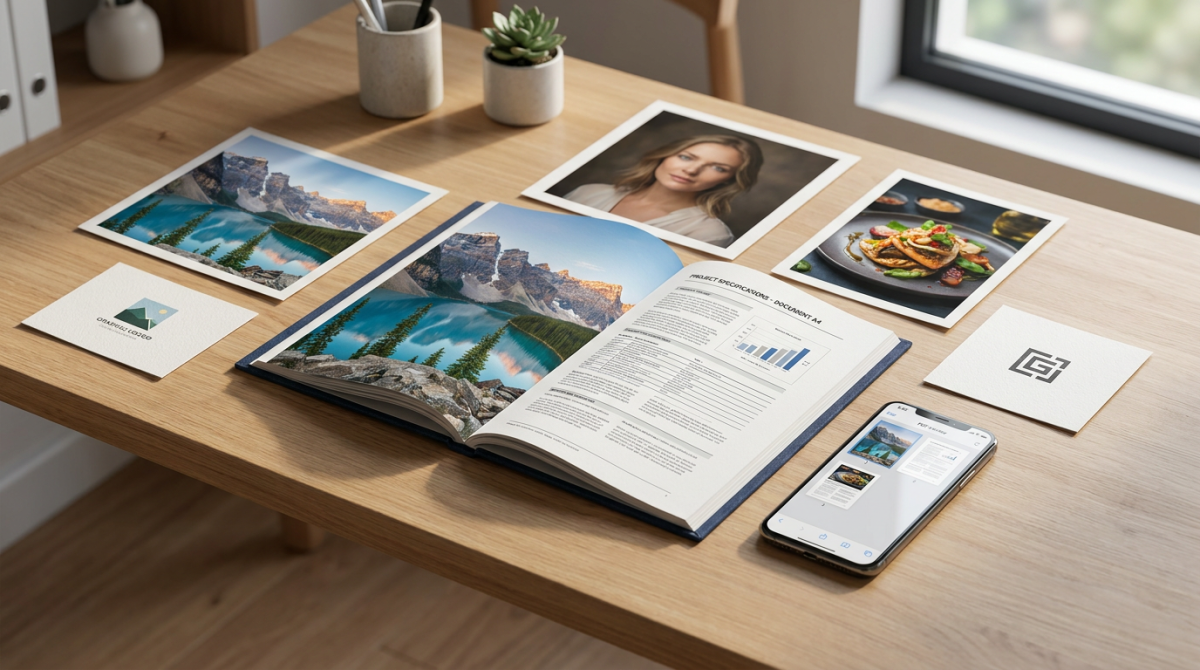
Knowing how to convert images to PDF without losing quality matters whenever photos, scans, or screenshots must stay sharp in a shareable document. A soft PDF is rarely “just PDF” — it is usually a bad source file, forced downscaling, or lossy re-compression during conversion.
This guide shows how to convert JPG and PNG to PDF at full clarity, which settings protect resolution, when page size hurts quality, and how to shrink a finished PDF without crushing detail. All FlashFile conversion steps run privately in your browser.
Quick Answer
To convert images to PDF without losing quality:
- Start from original full-resolution JPG or PNG files — not chat or social compressions.
- Do not re-save JPG at a lower quality before conversion.
- Keep PNG for sharp graphics, text, and transparency.
- Embed images at 100% scale; for print target ~300 DPI at the real page size.
- Choose a page size that fits the image so the tool does not auto-shrink pixels.
- Use a private browser-based Image to PDF converter that preserves source dimensions.
Follow those rules and the PDF will look as sharp as the source — because the pixels never had to be thrown away.
Why Image Quality Drops During PDF Conversion
PDF is a container. It can hold high-quality images. Soft results almost always come from the pipeline around the container:
- Downscaling — fitting a 4000px photo onto a small default page without “fit to page / original size” control.
- JPEG re-encoding — decoding a JPG and saving it again at 60–70% quality inside the PDF.
- Aggressive PDF compression — post-process tools that treat every image as a web thumbnail.
- Weak source files — screenshots already resized, WhatsApp exports, or heavily compressed camera rolls.
- Wrong format choice — flattening a sharp PNG logo into a low-quality JPG before building the PDF.
Can You Convert JPG to PDF Without Losing Quality?
Yes — convert JPG to PDF without losing quality when the converter embeds the photo without another lossy pass. JPG is already lossy; a second compression is what creates blockiness and muddy skin tones.
Best practices:
- Use the highest-quality original you have (camera export, not a resized email copy).
- Skip “optimize for web” before conversion.
- Prefer tools that keep original pixel dimensions.
- If you must compress later, do it once on the finished PDF with controlled settings.
FlashFile JPG to PDF combines one or many photos into a PDF entirely in your browser.
Can You Convert PNG to PDF Without Losing Quality?
PNG is lossless, so convert PNG to PDF without losing quality is straightforward when pixels are not downscaled and transparency is handled cleanly (usually on a white or chosen background for print-style pages).
Use PNG → PDF when you need:
- Screenshots with readable UI text
- Logos, icons, and brand marks
- Charts, diagrams, and annotated images
- Any graphic where edges must stay crisp
Try FlashFile PNG to PDF for single or multi-page documents from PNG files.
JPG vs PNG for PDF — Comparison Table
Pick the source format that matches the content before you build the PDF.
| Factor | JPG → PDF | PNG → PDF |
|---|---|---|
| Best for | Photographs, product shots, lifestyle images | Screenshots, logos, UI, text graphics |
| Compression in source | Lossy (already smaller) | Lossless (exact pixels) |
| Transparency | Not supported | Supported in PNG; flatten for many PDF layouts |
| Typical PDF size | Smaller for photo-heavy docs | Larger for photo-like content |
| Text & hard edges | Can soften if re-compressed | Stays sharp when not downscaled |
| Re-editing risk | Avoid repeated JPG saves | Safe to re-export PNG masters |
| Print readiness | Excellent with 300 DPI sources | Excellent for line art and diagrams |
| When to prefer | Many photos, email-friendly size | Clarity over file size |
Best Settings for High-Quality Image to PDF
Resolution and DPI
- Screen / digital share: keep native pixel width and height.
- Print: ~300 DPI at the physical size on the page.
- Do not upscale a 800px image to “fake” 300 DPI — it only enlarges softness.
Compression
- Leave quality at maximum during the first conversion.
- Compress only if the PDF must meet an upload limit.
- Prefer one controlled compression pass over many automatic ones.
Page size and orientation
- Match page size to image aspect ratio (A4, Letter, or image-sized pages).
- Use landscape pages for wide photos instead of squeezing them into portrait.
- Avoid huge empty margins that force the image into a tiny printable area.
How to Convert Multiple Images to PDF Without Losing Quality
- Collect full-resolution files in one folder.
- Rename or sort them in reading order (001, 002, …).
- Check that mixed portrait/landscape pages are intentional.
- Convert in a single batch with a multi-file tool.
- Open the PDF at 100% zoom and spot-check text and edges.
- Only then compress if the file is still too large for the destination.
Need step-by-step detail on page order, mixed sizes, and phone vs desktop? Read how to convert multiple JPG images into one PDF.
How to Reduce PDF Size Without Destroying Quality
After you have a sharp PDF, size reduction is a separate job. Smart order of operations:
- Delete blank or duplicate pages first.
- Crop useless white borders if your workflow allows.
- Downscale only images that are far larger than needed for screen or print.
- Apply moderate compression and compare side by side.
FlashFile PDF Compressor rewrites PDFs locally so you can balance size and clarity without uploading documents.
PNG vs JPG: Which Is Better for PDF Conversion?
There is no single winner. Photographs almost always belong as JPG inside a PDF. UI captures, logos, and diagrams belong as PNG. Mixing formats by page is normal in professional documents.
For a full decision guide on formats themselves, read PNG vs JPG: Which Image Format Should You Use?.
How to Convert Images to PDF Online
A private images to PDF online workflow looks like this:
- Open FlashFile in your browser (desktop or mobile).
- Choose JPG to PDF for photos or PNG to PDF for graphics and screenshots.
- Add one image or a whole batch; reorder if needed.
- Convert — processing stays on your device.
- Download the PDF and verify sharpness at 100% zoom.
No account is required for standard conversions, and files are not sent to FlashFile servers.
Common Mistakes That Ruin Image-to-PDF Quality
- Using compressed messenger or social downloads as masters
- Converting PNG logos to low-quality JPG first
- Forcing every image onto a tiny default page size
- Running “maximum compression” on the first export
- Upscaling small images and expecting print sharpness
- Judging quality while zoomed far beyond 100% on a screen-resolution file
Frequently Asked Questions
Can you convert images to PDF without losing quality?
Yes. Use original full-resolution files, avoid re-compressing JPG before conversion, keep PNG when you need sharp edges or transparency, embed images at 100% scale (or 300 DPI for print), and choose a converter that does not downscale by default.
Does converting JPG to PDF reduce quality?
Not if the tool embeds the JPG stream without re-encoding. Quality drops when the converter re-saves at a lower JPEG quality, shrinks pixels to fit a small page, or applies aggressive PDF compression afterward.
Does converting PNG to PDF reduce quality?
PNG is lossless. A good PNG to PDF tool preserves every pixel. Quality only suffers if the tool flattens transparency poorly, rasterizes at a lower resolution, or later compresses the PDF with lossy image settings.
What resolution should I use for image to PDF?
For screen sharing, keep the source pixel dimensions. For print, aim for about 300 DPI at the physical page size (for example a full A4 photo needs roughly 2480×3508 pixels). Do not upscale a small photo just to hit 300 DPI — that invents soft pixels.
How do I convert multiple images to one PDF without losing quality?
Sort images in the order you want, use the same orientation where possible, pick a page size that fits the largest image without forced downscaling, and convert in one batch with a multi-image tool such as FlashFile JPG to PDF or PNG to PDF.
JPG or PNG — which is better before PDF conversion?
Use JPG for photographs when file size matters. Use PNG for logos, screenshots, charts, text graphics, and anything with transparency. Converting a soft JPG to PNG before PDF will not restore lost detail.
How can I reduce PDF size after conversion without destroying quality?
First remove unused pages and huge blank margins. Then compress with moderate settings, or downscale only images that are far larger than the display or print size. FlashFile Compress PDF runs locally so you can try settings safely.
Is it safe to convert images to PDF online?
Only if processing stays on your device. FlashFile tools run 100% client-side in the browser — files are not uploaded to our servers.
Why does my PDF look blurry after conversion?
Common causes: the source was already low-resolution, the tool fit a large image onto a small page and downscaled it, JPEG quality was lowered, or you zoomed past 100% on a screen-resolution file. Re-convert from originals at full size.
Can I convert photos to PDF on my phone without quality loss?
Yes, as long as you export full-resolution camera files (not heavily compressed chat exports) and use a browser-based converter that keeps original dimensions. Avoid “email size” or “social share” copies as the source.
Recommended FlashFile Tools
- FlashFile Image Tools — full image toolkit directory
- JPG to PDF — photos to multi-page PDF
- PNG to PDF — graphics and screenshots to PDF
- PDF Compressor — shrink PDFs after conversion
- PNG vs JPG Guide — choose the right source format
Conclusion
You can convert images to PDF without losing quality when you protect pixels end to end: strong source files, no unnecessary JPG re-encoding, sensible page size, and compression only when you truly need a smaller file. Start with JPG to PDF or PNG to PDF, then refine size with PDF Compressor if an upload limit demands it.
Convert images to PDF at full quality
Private, browser-based JPG and PNG to PDF tools — no uploads, no account required for standard conversions.
Related Tools
Convert one or many JPG photos into a crisp multi-page PDF in your browser
Turn PNG screenshots and graphics into high-clarity PDF pages
Reduce PDF file size after conversion without crushing image detail
Browse every FlashFile image converter, compressor, and optimizer
Related Articles
Keep reading — more PDF and image conversion guides from the FlashFile blog.
 Image & PDF Guides
How to Convert Scanned Images to PDF: A Complete Guide
Learn how to convert scanned images to PDF online. Combine JPG, PNG, and scanned document pages into one PDF while preserving quality and order.
Read More Image & PDF Guides
How to Convert JPG to PDF on Windows: 5 Easy Methods
Learn how to convert JPG to PDF on Windows using Microsoft Print to PDF, Photos, Word, and online tools. Combine multiple JPG images into one PDF while preserving quality.
Read More Image & PDF Guides
How to Convert Multiple JPG Images into One PDF
Learn how to convert multiple JPG images into one PDF online. Combine photos and scanned pages, arrange images, reduce file size, and create a single PDF.
Read More