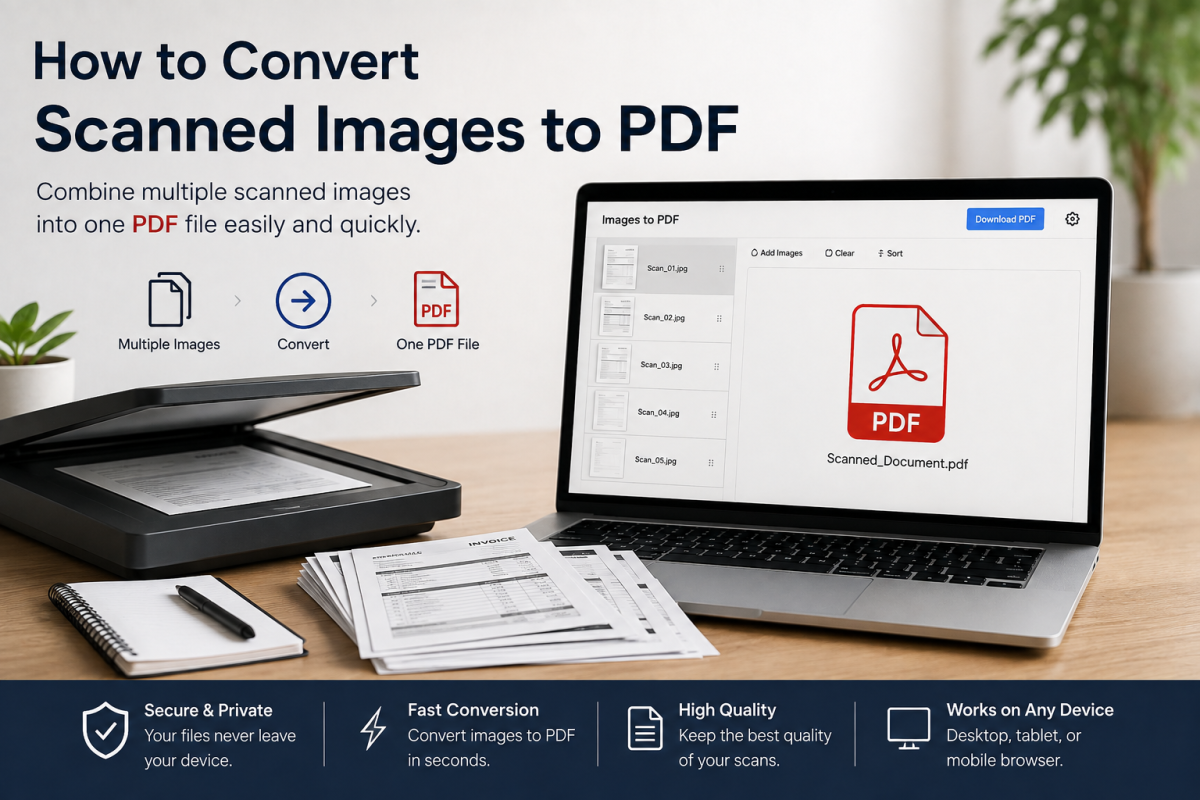
Learning how to turn scanned images to PDF is essential whenever you digitize paper: contracts, invoices, ID copies, homework, medical forms, or multi-page reports from a flatbed or phone camera. Separate JPG or PNG scan files are hard to email, archive, or print as one package. A single PDF keeps page order, looks professional, and works almost everywhere.
This complete guide explains what a scan-to-PDF workflow is, how to prepare images, how to convert scanned documents online without wrecking readability, and how to combine many pages into one file. You can start right away with FlashFile’s free JPG to PDF converter — processing stays in your browser. Explore more utilities on the All Tools page and the Image Tools directory. Ranking in search engines is never guaranteed; this article focuses on practical conversion quality and privacy, not promises about Google positions.
Quick Answer: Convert Scanned Images to PDF
- Scan or photograph each page clearly (even light, straight edges, readable text).
- Save pages as JPG or PNG and name them in order (01, 02, 03…).
- Open an image to PDF converter in your browser.
- Upload all scanned images, rearrange if needed, and convert.
- Download the multi-page PDF; compress only if the file is too large to send.
That is the core path from paper (or phone photos) to a shareable PDF. The sections below cover quality, order, OCR, and common mistakes in more depth.
What Does “Scanned Images to PDF” Mean?
A scanner or phone camera produces raster images — grids of pixels stored as JPG, PNG, or similar. Converting scanned images to PDF wraps those pictures into the PDF container, usually one image per page. The result is an image-based PDF: it looks like the paper, but the text is not automatically selectable unless you add OCR later.
This differs from exporting a Word or spreadsheet file to PDF, where text and layout are already digital. With scans, your job is to preserve clarity, orientation, and sequence so the PDF reads like the original stack of pages.
Why Convert Scanned Documents to PDF?
- One file instead of many: Recipients open a single PDF instead of a folder of scan_01.jpg files.
- Stable page order: Page 3 stays after page 2 when you arrange images before conversion.
- Universal sharing: Email, portals, courts, schools, and HR systems almost always accept PDF.
- Print-ready packages: Standard page sizes (A4, Letter) make reprinting predictable.
- Archiving: Long-term document stores prefer PDF over loose image dumps.
Prepare Scanned Images Before Conversion
PDF quality starts at the scan. Fix problems before you convert:
- Resolution: Aim for roughly 200–300 DPI for text documents. Higher DPI helps tiny print but inflates file size.
- Lighting and contrast: Avoid shadows and glare so black text stays sharp on white paper.
- Straight pages: Align paper on the glass or use a phone edge-detection app; crooked scans look unprofessional in PDF.
- Crop margins: Remove huge empty borders so content fills the page cleanly.
- Orientation: Rotate landscape pages before upload so readers do not tilt their heads.
- File naming: Use zero-padded numbers so sorting matches reading order.
If individual scans are huge, lightly optimize them with the Image Compressor or follow how to compress an image without losing quality — then build the PDF. For strict upload caps, see how to compress an image to 100KB online.
How to Convert Scanned Images to PDF Online (Step by Step)
Step 1 — Choose a private image to PDF tool
Open FlashFile’s JPG to PDF tool (or PNG to PDF for PNG scans). Client-side conversion means your document images are processed on your device, not uploaded to an unknown server — critical for IDs, contracts, and medical paperwork.
Step 2 — Upload all scanned pages
Select every page of the document in one session. Mixing compatible formats is fine when the tool supports them. Prefer the highest-quality scan you still have; do not start from a heavily compressed email attachment if a better master exists.
Step 3 — Arrange pages in reading order
Confirm the sequence matches the paper stack. Wrong order is the most common multi-page scan mistake. For a deeper walkthrough of multi-file workflows, read How to Convert Multiple JPG Images into One PDF.
Step 4 — Set page size and fit (when available)
For office documents, A4 or Letter is typical. Fit each scan to the page without extreme stretching. Preserving aspect ratio keeps text from looking warped. Quality-focused settings matter more than maximum compression at this stage — see also how to convert images to PDF without losing quality.
Step 5 — Convert and download
Run the conversion, open the PDF, and spot-check a few pages for sharpness, rotation, and order. Keep the original image set until you confirm the PDF is correct.
Combine Multiple Scanned Pages into One PDF
Multi-page paper jobs are the main reason people search for scanned images to PDF. Treat the set as one document:
- Scan every page at the same DPI and color mode when possible.
- Number files so automatic sort matches page order.
- Convert in one batch so page dimensions stay consistent.
- If the PDF is too heavy for email, compress the finished file — not each page three times over.
After conversion, use FlashFile’s PDF Compressor when portals reject large uploads. Compress enough to meet the limit while keeping text legible on screen and in print.
JPG vs PNG Scans for PDF
Format choice affects size and edge clarity. For a full comparison, see PNG vs JPG and the difference between PNG and JPG.
- JPG: Smaller files for photo-like scans and color pages. Ideal default for many document scanners.
- PNG: Sharper for high-contrast text, diagrams, and cases where lossless detail matters more than size.
- Mixed sets: Convert with tools that accept both, or standardize format first via Image Tools.
Preserve Quality and Readability
- Do not downscale below the size needed to read small print on a laptop or phone.
- Avoid stacking many lossy JPG re-saves before PDF creation.
- Prefer moderate PDF compression after assembly rather than crushing every page first.
- Check grayscale vs color: pure text often looks fine in grayscale and saves space.
- Verify zoomed-in text after conversion — soft edges mean you over-compressed.
Searchable PDFs and OCR
An image-only PDF cannot be searched or copied as text. Optical character recognition (OCR) reads the pixels and produces text you can use elsewhere. FlashFile’s Image to Text tool runs OCR in the browser so you can extract content from a scanned page without uploading private documents to a third-party server.
Typical workflow: convert scans to PDF for sharing and archiving; run OCR on key pages when you need editable or searchable text. OCR accuracy depends on scan clarity, language, and fonts — always proofread critical numbers and names.
Phone Photos vs Hardware Scanners
Phone “scans” are convenient but need extra care: hold the camera parallel to the page, use diffuse light, fill the frame, and crop. Hardware scanners usually give more consistent DPI and color. Either source can become a solid PDF if you follow the same order-and-quality checklist.
Privacy: Why Client-Side Scan Conversion Matters
Scanned packets often include passports, bank statements, tax forms, and health records. Upload-based “free” converters may store or log files on remote servers. FlashFile tools emphasize 100% client-side processing — your scans never leave your device. You get the convenience of converting scanned images to PDF online without surrendering the files themselves.
Common Mistakes When Converting Scans to PDF
- Uploading pages out of order and shipping the PDF without checking.
- Using tiny, blurry phone photos that become unreadable when printed.
- Over-compressing until text blocks and halos appear.
- Leaving pages rotated 90° or 180°.
- Trusting unknown upload services with sensitive identity documents.
- Expecting automatic text search without running OCR.
Related Guides
Frequently Asked Questions
How do I convert scanned images to PDF online?
Open a browser-based image to PDF converter, upload your scanned JPG or PNG files in the correct order, choose page size if needed, convert, and download the PDF. With FlashFile, conversion runs locally in your browser.
Can I combine multiple scanned pages into one PDF?
Yes. Most image-to-PDF tools place each image on its own page so you can merge a full multi-page scan into a single document.
Will converting scans to PDF reduce quality?
It can if the tool heavily compresses or downscales images. Start with clear high-resolution scans, avoid unnecessary re-compression, and use a quality-preserving converter.
What format should scanned documents use before PDF?
JPG is common for photo-like document scans. PNG is better when you need sharper text edges or transparency. Both can be converted to PDF.
How do I keep scanned pages in the right order?
Name files sequentially (01, 02, 03…), upload in order, and rearrange in the tool before converting if the UI allows drag-and-drop sorting.
Is a scanned PDF searchable?
A plain image-based PDF is usually not text-searchable. You need OCR (optical character recognition) to add a text layer. FlashFile’s Image to Text tool can extract text from scans; full searchable-PDF embedding depends on the workflow you use afterward.
Are online scan-to-PDF tools safe for private documents?
Upload-based tools send files to a server. Prefer client-side converters that process images only in your browser so IDs, contracts, and medical scans never leave your device.
Can I convert phone photos of documents to PDF?
Yes. Capture pages under even light, crop edges, optionally compress large photos, then convert with an image to PDF tool the same way you would with scanner output.
Conclusion
Converting scanned images to PDF is straightforward when you prepare clear pages, keep order, choose the right image format, and use a quality-aware converter. Combine every page into one file, compress only as needed, and use OCR when you need searchable or copyable text. Prefer browser-local tools for private documents.
Ready to build your next multi-page scan packet? Open FlashFile’s JPG to PDF converter and create a clean PDF without uploading your files to a remote server. Search rankings are not guaranteed for any guide or tool — focus on a readable, correctly ordered document first.
Related FlashFile Tools
Free client-side tools from this guide — your files stay on your device.
Convert Scanned Images to PDF
Free, fast, and private. Combine JPG and PNG scans into one PDF — 100% client-side in your browser.
Related Articles
Keep reading — more PDF and image conversion guides from the FlashFile blog.
 Image & PDF Guides
How to Convert Multiple JPG Images into One PDF
Learn how to convert multiple JPG images into one PDF online. Combine photos and scanned pages, arrange images, reduce file size, and create a single PDF.
Read More Image & PDF Guides
How to Convert JPG to PDF on Windows: 5 Easy Methods
Learn how to convert JPG to PDF on Windows using Microsoft Print to PDF, Photos, Word, and online tools. Combine multiple JPG images into one PDF while preserving quality.
Read More Image & PDF Guides
How to Convert Photos to PDF on Any Device
Learn how to convert photos to PDF on Windows, Mac, iPhone, Android, and any device. Convert JPG and PNG images to PDF, combine multiple photos, and preserve image quality.
Read More