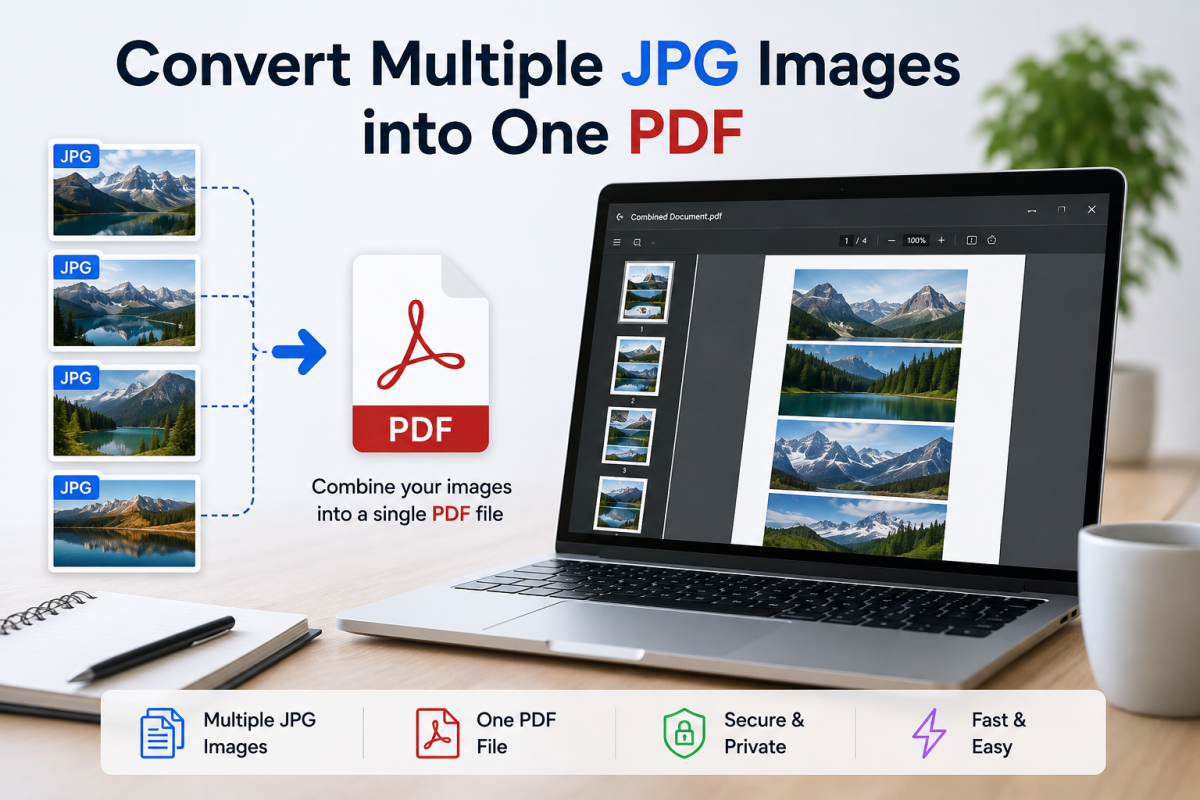
Have you ever had a folder full of JPG images that you needed to combine into a single, organized PDF? Whether you're working with scanned documents, receipts, product photos, notes, assignments, or travel pictures, combining multiple JPG files into one PDF can make them much easier to store, share, print, and organize.
The good news is that you don't need complicated software. In this guide, you'll learn how to convert multiple JPG images into one PDF, how to arrange the pages correctly, how to maintain image quality, and how to avoid common mistakes.
If you want to convert your images immediately, open FlashFile's JPG to PDF tool — it runs entirely in your browser so your photos never leave your device. For a device-by-device overview (Windows, Mac, iPhone, Android), see how to convert photos to PDF on any device. You can also browse all image tools or compare formats in our PNG vs JPG guide.
Quick Answer: How to Convert Multiple JPG Images into One PDF
The basic process is simple:
- Select the JPG images you want to combine.
- Open them in an image-to-PDF converter (no server upload required with FlashFile).
- Arrange the images in the correct order.
- Choose the desired page size and orientation.
- Convert the images into a single PDF.
- Download and check the final document.
Each JPG becomes a separate PDF page, resulting in one PDF containing all your images. Start with convert JPG to PDF when you are ready.
What Does "Multiple JPG to One PDF" Mean?
When you convert multiple JPG images into one PDF, you're essentially creating a multi-page PDF document. For example:
- JPG 1 → PDF Page 1
- JPG 2 → PDF Page 2
- JPG 3 → PDF Page 3
- JPG 4 → PDF Page 4
Instead of sending four separate image files, you now have one PDF with four pages. This is particularly useful when the images belong to the same document or project — a classic multiple JPG to PDF workflow.
Why Combine JPG Images into One PDF?
1. Easier File Sharing
Instead of sending multiple JPG attachments, you can send one PDF. This is especially convenient for email, messaging, and professional communication.
2. Better Organization
A collection of related images can be stored as one document instead of dozens of separate files.
3. Easier Printing
A multi-page PDF is generally more convenient to print than a folder containing multiple images.
4. Document Submission
Many schools, universities, companies, and online services ask users to submit documents as a single PDF.
5. Scanned Documents
If you scan several pages individually as JPG files, combining them into one PDF creates a much more practical document.
6. Receipts and Invoices
You can combine multiple receipt images into one PDF for record keeping — a common reason people merge JPG files into PDF.
How to Convert Multiple JPG Images into One PDF Online
The easiest method is to use an online image-to-PDF tool. With FlashFile, you can use browser-based conversion tools without installing desktop software. Processing stays on your device.
Step 1: Prepare Your JPG Images
Collect the images you want to combine. For example:
page-01.jpgpage-02.jpgpage-03.jpgpage-04.jpg
Before converting, make sure the images are readable and in the correct orientation.
Step 2: Open the Image-to-PDF Tool
Go to FlashFile and open the JPG to PDF converter (or PNG to PDF for PNG graphics). The goal is to create a single PDF from multiple image files — JPG images to one PDF in one pass.
Step 3: Select Multiple JPG Files
Choose all the JPG images you want to include. If you're combining scanned pages, select every page belonging to the document.
Step 4: Arrange the Images
Page order is extremely important. For example: Page 1 → Page 2 → Page 3 → Page 4.
Make sure the images appear in the correct sequence before generating the PDF. If the pages are out of order, the final document will also be out of order.
Step 5: Choose Page Settings
Depending on the tool, you may need to consider:
- Page size
- Portrait or landscape orientation
- Image scaling
- Margins
- Image positioning
For documents intended for printing, A4 is a common choice. For photographs, preserving the original aspect ratio can be more important than forcing every image into the same dimensions.
Step 6: Create the PDF
Start the conversion. The converter processes the selected JPG files and creates a new PDF containing the images as separate pages — a clean way to create PDF from JPG images.
Step 7: Download and Check the PDF
Before sharing the document, open the resulting PDF and check:
- Page order
- Image quality
- Orientation
- Cropping
- Text readability
- Page dimensions
How to Combine JPG Images Without Losing Quality
Use the Original JPG Files
Whenever possible, use the original images rather than screenshots or repeatedly compressed copies. Every unnecessary conversion or compression step can potentially reduce image quality.
Don't Upscale Small Images
If a JPG is low resolution, increasing its size won't magically create new detail.
Preserve the Aspect Ratio
Always maintain the original proportions of your images. This prevents images from appearing stretched, squashed, or distorted.
Avoid Excessive Compression
If image quality is your priority, avoid aggressive compression during the conversion process. For photographs, a reasonable level of JPG compression can significantly reduce file size while maintaining good visual quality. After conversion, you can still run a balanced pass with the PDF Compressor if email limits require a smaller file.
What Happens If JPG Images Have Different Sizes?
This is a common situation. For example, you may have:
- Image 1: 1920 × 1080
- Image 2: 1600 × 1200
- Image 3: 3000 × 2000
- Image 4: 1200 × 1600
They can still be combined into one PDF. However, the resulting pages may have different proportions unless the conversion tool standardizes the page dimensions. If consistency is important, consider using the same page size and positioning for every image when you combine images into one PDF.
Portrait vs Landscape Images
Your JPG files may have different orientations. For mixed-orientation documents, preserving each image's original aspect ratio is generally preferable.
How Many JPG Images Can You Put Into One PDF?
There is no universal number. A PDF can contain many pages, but practical limits depend on image resolution, image dimensions, file size, browser memory, device performance, and PDF generation method. For very large collections, consider creating several smaller PDFs or reducing image dimensions where appropriate before you convert multiple images to PDF.
How to Convert JPG Images to PDF on a Computer
Select your JPG images, arrange them in the correct order, open a JPG to PDF online tool in your browser, choose page settings, export the document, and check the result. No desktop install is required when conversion runs client-side.
How to Convert JPG Images to PDF on a Phone
Open your image files, select the images, use a mobile-friendly image-to-PDF tool in the browser, arrange the pages, generate the PDF, and save or share it. This is ideal for multiple photos to PDF from a phone gallery.
How to Create a PDF from Scanned JPG Pages
Scan, check image quality, arrange pages, convert to PDF, and check the final document. Make sure each scan is properly oriented, readable, not excessively cropped, and correctly numbered before you combine JPG images into PDF.
JPG to PDF vs Merging Existing PDFs
JPG to PDF starts with image files. Merging PDF starts with existing PDF documents. If you already have PDFs, use a PDF merge tool rather than converting them back into images first.
How to Reduce the Size of a PDF Created From JPGs
Resize oversized images, compress images carefully, remove unnecessary pages, and compress the completed PDF if needed with the PDF Compressor. The goal is the right balance between quality and file size when you convert photos to PDF.
Common Problems When Combining JPG Images Into a PDF
- Blurry images: low-resolution sources, excessive compression, unnecessary resizing, or poor-quality originals.
- Wrong page order: files were selected or sorted incorrectly. Rename files using
01-page.jpg,02-page.jpg,03-page.jpg. - Rotated images: orientation metadata can flip pages — rotate sources before conversion.
- PDF too large: high-resolution photographs inflate file size — compress after packaging if needed.
- Stretched images: aspect ratio was not preserved.
Best Practices for Multiple JPG to PDF Conversion
Before conversion
- Use high-quality originals
- Check orientation
- Rename files logically
- Arrange pages correctly
- Remove unnecessary images
During conversion
- Preserve aspect ratio
- Choose an appropriate page size
- Avoid unnecessary resizing
- Avoid aggressive compression
After conversion
- Open the PDF and check every page
- Verify page order and image clarity
- Check file size and text readability
Frequently Asked Questions
Can I convert multiple JPG images into one PDF?
Yes. Multiple JPG images can be combined into a single multi-page PDF, with each image typically becoming a separate page.
Can I combine 10 or 20 JPG images into one PDF?
Yes. The practical limit depends on the image sizes, resolution, device, and conversion method.
Will converting JPG images to PDF reduce quality?
It can, depending on how the conversion handles image resizing and compression. Using high-quality source images and avoiding unnecessary compression helps preserve quality.
Can I combine JPG and PNG images into one PDF?
Yes, if the conversion tool supports both formats. FlashFile image-to-PDF tools accept common image types so you can mix compatible files in one session when needed.
Can I convert scanned JPG pages into one PDF?
Yes. This is one of the most common reasons to combine multiple JPG images into a single PDF. For a full walkthrough, see our guide on converting scanned images to PDF.
How do I keep the images in the correct order?
Number your files sequentially, such as 01.jpg, 02.jpg, 03.jpg, and arrange them before conversion.
What page size should I use?
For documents intended for standard printing, A4 is a common choice. For photographs, preserving the original proportions may be more important.
Can I combine JPG images into a PDF for free?
Browser-based tools like FlashFile let you convert multiple JPG images into one PDF in your browser without installing desktop software. Availability and features depend on the tool you choose.
Conclusion
Converting multiple JPG images into one PDF is a simple way to organize, share, print, and archive collections of images. Whether you're combining scanned documents, receipts, photographs, assignments, invoices, or product images, the basic process remains the same:
Select your JPG files → Arrange them → Choose the appropriate settings → Convert → Check the PDF.
For the best results, use high-quality source images, preserve their aspect ratio, avoid unnecessary resizing, and carefully balance image quality with file size. When you're ready, open JPG to PDF, try PNG to PDF, shrink large outputs with the PDF Compressor, or explore all FlashFile tools and the PNG vs JPG guide.
Related FlashFile Tools
Free client-side tools for this guide — files stay on your device.
Prefer format advice first? Read PNG vs JPG.
Convert multiple JPGs to one PDF
Combine photos, scans, and receipts into a single PDF privately in your browser.
Related Articles
Keep reading — more PDF and image conversion guides from the FlashFile blog.
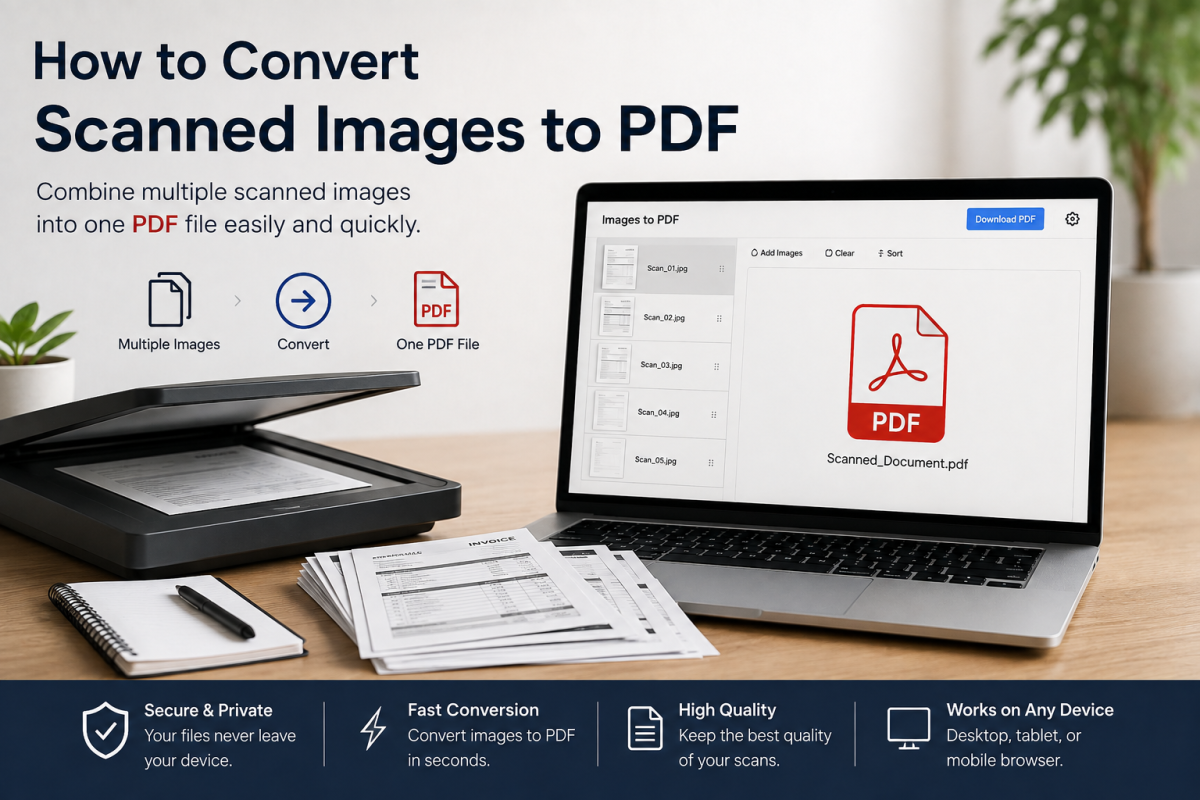 Image & PDF Guides
How to Convert Scanned Images to PDF: A Complete Guide
Learn how to convert scanned images to PDF online. Combine JPG, PNG, and scanned document pages into one PDF while preserving quality and order.
Read More Image & PDF Guides
How to Convert Photos to PDF on Any Device
Learn how to convert photos to PDF on Windows, Mac, iPhone, Android, and any device. Convert JPG and PNG images to PDF, combine multiple photos, and preserve image quality.
Read More Image & PDF Guides
How to Convert JPG to PDF on Windows: 5 Easy Methods
Learn how to convert JPG to PDF on Windows using Microsoft Print to PDF, Photos, Word, and online tools. Combine multiple JPG images into one PDF while preserving quality.
Read More