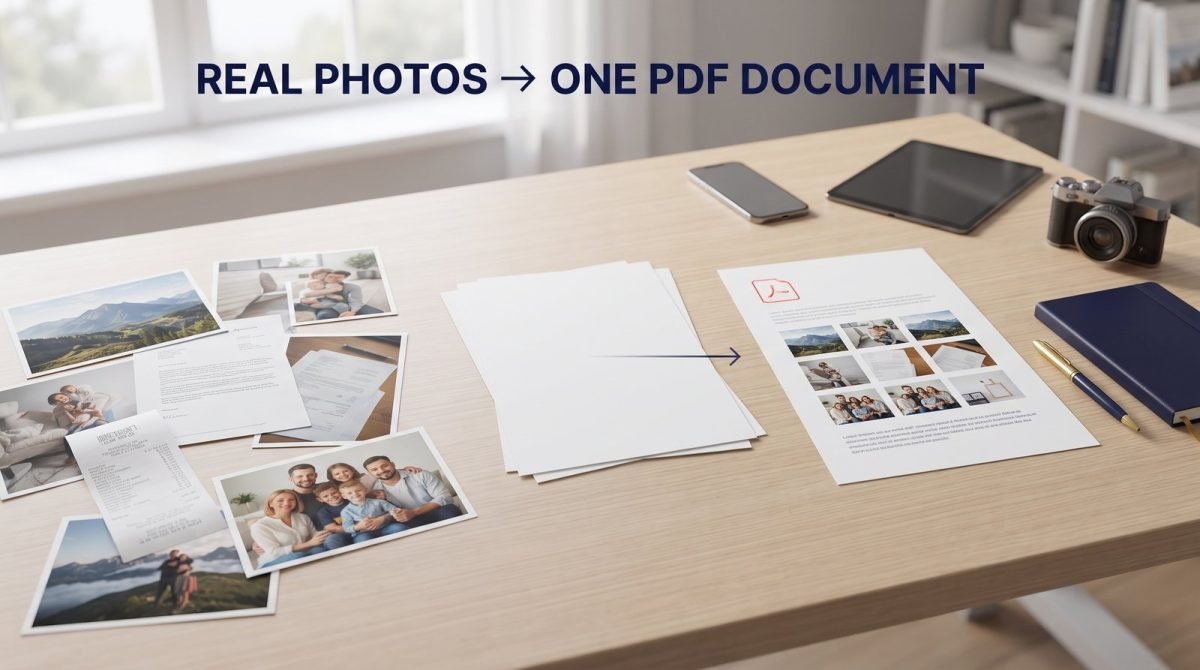
Learning how to convert photos to PDF is one of the most useful everyday file skills. Students photograph homework pages, travelers save ticket screenshots, freelancers package receipts, and families archive albums as a single document that opens the same way on every phone and computer.
This guide shows how to convert photos to PDF on Windows, Mac, iPhone, Android, and any modern browser. You will learn how to combine multiple photos into one PDF, work with JPG and PNG, keep image quality high, shrink oversized files, and avoid common mistakes — with private, client-side tools from FlashFile when you want conversion without uploading personal images.
Ready to convert now? Open the JPG to PDF converter, or browse all image tools. For batch page order tips, see how to convert multiple JPG images into one PDF.
Quick Answer: How to Convert Photos to PDF
The fastest path on any device is a browser-based image-to-PDF tool:
- Open FlashFile JPG to PDF (or PNG to PDF for PNG files).
- Select one photo or many from your device or gallery.
- Arrange the order so page 1 is the first image you want readers to see.
- Convert — each photo becomes a PDF page.
- Download the PDF and open it to check clarity, rotation, and sequence.
That is the core photos to PDF workflow. The sections below cover built-in OS options and quality tips when you need more control.
What Does “Convert Photos to PDF” Mean?
When you convert photos to PDF, you place one or more image files inside a Portable Document Format container. Recipients open a familiar document instead of a folder of loose JPGs. Typically:
- Photo 1 → PDF page 1
- Photo 2 → PDF page 2
- Photo 3 → PDF page 3
The PDF stores page size, order, and embedded image data so the file looks consistent on phones, laptops, and printers. That reliability is why schools, banks, and offices often ask for PDF uploads rather than raw camera files.
Why Convert Photos to PDF?
- One file instead of many: Email or upload a single PDF instead of a dozen attachments.
- Professional presentation: A multi-page PDF reads like a document, not a casual photo dump.
- Print and archive: Page sizes and margins behave more predictably than random image dimensions.
- Portal requirements: Applications, LMS homework, and insurance claims frequently accept PDF only.
- Cross-device consistency: The same PDF opens on Windows, Mac, iOS, and Android without special photo apps.
How to Convert Photos to PDF Online (Any Device)
An online converter that runs in the browser works the same way on a laptop, tablet, or phone — as long as you have a modern browser and access to your image files.
Step-by-step with FlashFile
- Go to convert JPG to PDF or the full tools directory.
- Drag and drop photos, or browse your device storage / photo library.
- Confirm the list. Reorder if your UI supports drag sorting.
- Start conversion. The browser builds the PDF locally.
- Download and spot-check zoom, crop, and page order before you send it.
Because FlashFile is client-side, your photos never leave the device during conversion — a safer default for IDs, signed forms, and private family pictures than unknown upload-based websites.
How to Convert Photos to PDF on Windows
Windows users have several solid options. For a deep dive into Print to PDF, Photos, Word, and more, read how to convert JPG to PDF on Windows.
Method 1: Browser converter (fastest for batches)
Open Edge or Chrome, visit JPG to PDF, drop files from File Explorer, convert, and save to Downloads. Ideal when you need many photos in one PDF with clear order control.
Method 2: Microsoft Print to PDF
- Open the photo in Photos, Paint, or Edge.
- Choose Print and select Microsoft Print to PDF as the printer.
- Set orientation and paper size, then Print and pick a save location.
Great for one or a few images without installing software. Multi-page batches are usually easier in a dedicated multi-image converter.
Method 3: Microsoft Word
Insert photos into a Word document, adjust layout, then File → Save As → PDF (or Export). Useful when you need captions or mixed text and images in the same file.
How to Convert Photos to PDF on Mac
Preview
Open images in Preview, use File → Export as PDF for a single image, or combine selected thumbnails and export. The print dialog can also Save as PDF.
Browser converter
Safari, Chrome, and Firefox all run FlashFile’s client-side engine. Select many JPGs at once, convert, and download one multi-page file without installing extra Mac apps — the same convert photos to PDF online flow as on Windows.
How to Convert Photos to PDF on iPhone
- Open Safari and go to a mobile-friendly photos-to-PDF tool such as FlashFile JPG to PDF.
- Allow photo library access when prompted and select the images you need.
- Convert, then use the share sheet to Save to Files, Mail, or AirDrop.
You can also create a PDF from the Files app or print workflows in some iOS versions, but a browser converter is often clearer when you need several gallery photos in a specific order.
Tip: If your Camera Roll stores HEIC, export or convert to JPG first when a tool expects JPEG input.
How to Convert Photos to PDF on Android
- Open Chrome (or another modern browser) and load the converter page.
- Pick images from Gallery or Files.
- Convert and open the PDF with your preferred viewer, Drive, or share sheet.
Client-side conversion is especially useful on Android for ID cards and signed forms — your photos stay on the phone instead of uploading to a third-party server.
How to Convert Multiple Photos into One PDF
To create multiple photos to PDF as one document, select every image in a single session. Each photo becomes a page. Name files in order (01.jpg, 02.jpg) or rearrange them in the tool UI.
Full walkthrough of order, mixed sizes, and quality: convert multiple JPG images into one PDF. For scanned paper pages, see how to convert scanned images to PDF.
Already have several single-page PDFs? Use Merge PDF instead of converting images again.
Converting JPG and PNG Photos to PDF
Most camera photos are JPG (or JPEG — the same format). Screenshots, UI graphics, and images that need transparency are often PNG. Match the tool to the file you have:
- JPG to PDF — phone photos, travel pictures, receipt photos
- PNG to PDF — screenshots, diagrams, sharp text graphics
Unsure which format to keep before conversion? Read PNG vs JPG and the broader JPG to PDF complete guide.
How to Convert Photos to PDF Without Losing Quality
- Start from the original high-resolution photo — not a screenshot of a screenshot.
- Avoid “email size” or maximum compression presets unless you need a tiny file.
- Prefer tools that embed image data cleanly rather than rasterizing through a low-DPI canvas.
- Preserve aspect ratio so faces and documents are not stretched.
- Check the PDF at 100% zoom before sending important pages.
Deeper guidance: how to convert images to PDF without losing quality.
How to Reduce the Size of a Photos-to-PDF File
- Resize huge phone photos with the image resizer or image compressor before packaging (for example, ~1500px on the long edge for on-screen reading).
- Export JPEGs at quality 80–90% when slight loss is acceptable.
- Convert to PDF, then run Compress PDF for a controlled second pass.
- Split oversized packets with Split PDF if a portal caps upload size per file.
Balance clarity and size: crush once carefully rather than re-compressing the same photo five times.
Common Photos-to-PDF Problems (and Fixes)
- Wrong page order: Rename or reorder files before converting.
- Rotated pages: Rotate in Photos/Gallery first, or fix orientation metadata.
- Blurry text on scans: Rescan at ~300 DPI; do not upscale a soft original.
- Huge file size: Multi-megapixel phone photos add up — compress after conversion if needed.
- Stretched images: Keep original aspect ratio; avoid force fill on mismatched page sizes.
- Portal rejects PDF: Check max size and page count; compress or split.
Practical Use Cases
Students
Photograph worksheets and lab notes, combine into one homework PDF, and compress if the LMS rejects large uploads.
Work and freelancing
Package receipt photos, signed paper contracts, and shipping labels as standardized PDFs for expense tools and CRMs. Privacy-first conversion matters when images include customer data.
Applications and travel
Visa forms, insurance claims, and rental applications often demand PDF. Convert clear, well-lit photos of each required page and combine only when the portal allows a single file.
Personal archives
Turn event albums or document photos into multi-page PDFs that are easier to back up and share than hundreds of loose camera files.
Frequently Asked Questions
How do I convert photos to PDF for free?
Use a free browser-based converter such as FlashFile’s JPG to PDF tool. Open the page, drop your photos, convert, and download. No account is required, and processing stays on your device.
Can I convert multiple photos into one PDF?
Yes. Select several images in one session so each photo becomes a page in a single multi-page PDF. Arrange order before you convert, or rename files 01, 02, 03 so sequence is clear.
Does converting photos to PDF reduce quality?
Not if the tool embeds images carefully. Quality drops mainly when images are heavily compressed, downscaled, or printed at low resolution. Start from original high-resolution photos whenever possible.
Can I convert both JPG and PNG photos to PDF?
Yes. JPG is ideal for camera photos; PNG suits screenshots and graphics with sharp edges. FlashFile offers JPG to PDF and PNG to PDF tools so you can match the format you have.
How do I convert photos to PDF on iPhone or Android?
Open a mobile-friendly converter in Safari or Chrome, pick images from your gallery, convert, and save or share the PDF. You do not need a separate app install when the site processes files in the browser.
Is it safe to convert private photos to PDF online?
Only when the tool does not upload your files to a server. Client-side converters like FlashFile keep decoding and PDF writing inside your browser tab — better for IDs, contracts, and personal albums.
How can I make a smaller photos-to-PDF file?
Resize very large phone photos first, use moderate JPEG quality when slight loss is acceptable, convert, then run Compress PDF if email or portal limits still block the upload.
What is the difference between photos to PDF and PDF to photos?
Photos to PDF packages images into a document for sharing and printing. PDF to JPG or PDF to PNG renders each PDF page as an image for previews, CMS uploads, or social posts.
Can I convert HEIC iPhone photos to PDF?
Many tools expect JPG or PNG. Convert HEIC to JPG first if needed, then use the same photos-to-PDF workflow. On iPhone you can also share or export as JPEG before conversion.
What is the best way to convert photos to PDF in 2026?
Prefer a private, quality-preserving browser tool that supports multiple images, works on any device, and pairs with compress or merge utilities when your workflow needs more than one step.
Conclusion
Knowing how to convert photos to PDF on any device comes down to a simple pattern: choose clear originals, set the right page order, convert with a trustworthy tool, then compress only when size limits require it. Whether you are on Windows, Mac, iPhone, or Android, a private browser workflow keeps personal images on your device while producing a document everyone can open.
Start with FlashFile JPG to PDF, use PNG to PDF when needed, shrink large outputs with Compress PDF, and explore all tools or the Ultimate Guide to PDF Conversion in 2026 for the wider format landscape.
Related FlashFile Tools
Free client-side tools for this guide — files stay on your device.
Convert photos to PDF with FlashFile
Free, fast, and private. Turn one photo or many into a clean PDF entirely in your browser.
Related Articles
Keep reading — more PDF and image conversion guides from the FlashFile blog.
 Image & PDF Guides
How to Convert Scanned Images to PDF: A Complete Guide
Learn how to convert scanned images to PDF online. Combine JPG, PNG, and scanned document pages into one PDF while preserving quality and order.
Read More Image & PDF Guides
How to Convert JPG to PDF on Windows: 5 Easy Methods
Learn how to convert JPG to PDF on Windows using Microsoft Print to PDF, Photos, Word, and online tools. Combine multiple JPG images into one PDF while preserving quality.
Read More Image & PDF Guides
How to Convert Multiple JPG Images into One PDF
Learn how to convert multiple JPG images into one PDF online. Combine photos and scanned pages, arrange images, reduce file size, and create a single PDF.
Read More