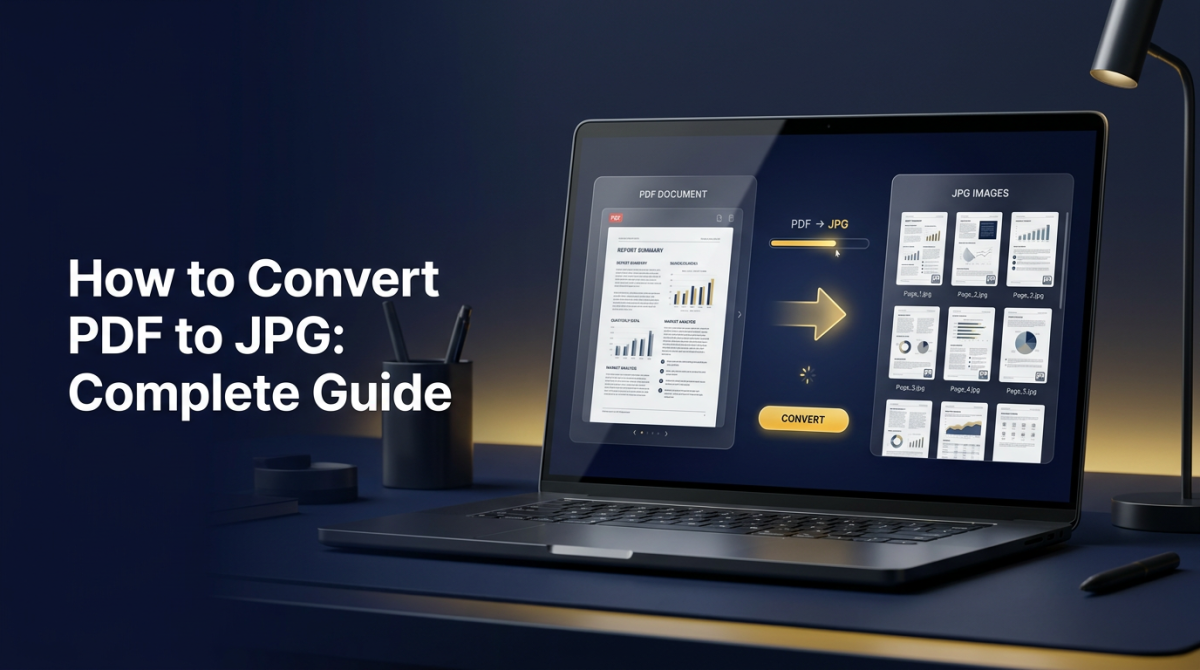
Learning how to convert PDF to JPG is one of the most practical document skills you can pick up. Reports, slides, invoices, and scanned packets often live as PDF, but websites, messaging apps, design tools, and social platforms prefer images. A reliable PDF to JPG converter turns each page into a crisp photo-style file you can preview, embed, or share — without installing desktop software or emailing attachments back and forth.
This complete guide explains what PDF to JPG conversion is, why people do it, how to convert one page or an entire document online, how to keep quality high, and how the workflow works on Windows, Mac, iPhone, and Android. You will also find comparisons with PNG and screenshots, troubleshooting tips, FAQs, and links to related FlashFile tools such as PDF to PNG, JPG to PDF, and Split PDF. For broader format strategy, see the Ultimate Guide to PDF Conversion in 2026.
Quick Answer: How to Convert PDF to JPG
- Open FlashFile’s free PDF to JPG tool in your browser.
- Drop your PDF file into the upload area (or browse to select it).
- Choose quality if the tool offers a slider or preset.
- Click convert and wait while each page is rendered locally.
- Download the JPG images — one file per page in most workflows.
That is the core of PDF to JPG online conversion. Everything below deepens quality, multi-page control, device tips, and safety so you get professional results every time.
What Is PDF to JPG Conversion?
A PDF is a multi-page document format that can hold text, vectors, fonts, and embedded images. JPG (JPEG) is a single-frame raster image format optimized for photographs and continuous-tone graphics. When you convert PDF pages to JPG, a renderer draws each page onto a pixel canvas and encodes that canvas as a JPEG file.
The result is a PDF to image converter workflow: selectable text becomes pixels, layout becomes a fixed picture, and each page becomes a standalone image. That is ideal when you need thumbnails, blog embeds, chat-friendly previews, or assets for design software that does not open PDF cleanly.
Why Convert PDF to JPG? (5 Reasons)
- Universal sharing: Almost every app accepts JPG. Recipients can open page images without a PDF reader.
- Web and CMS uploads: Many content systems prefer images for featured media, galleries, and inline figures.
- Social media and messaging: Platforms display images natively; multi-page PDFs often become awkward attachments.
- Design and markup: Designers drop page JPGs into Figma, Canva, or slides for mockups and redlines.
- Controlled previews: Exporting images freezes layout so nothing reflows when someone opens the file on another device.
How to Convert PDF to JPG Online (5 Steps)
Follow this path with any solid free PDF to JPG converter — FlashFile is used here as the reference because processing stays on your device.
Step 1 — Open the converter
Go to PDF to JPG on FlashFile. No account is required.
Step 2 — Add your PDF
Drag and drop the file or use the file picker. Confirm you selected the final version of the document, not a draft with wrong pages.
Step 3 — Set quality
If a quality control is available, choose high or balanced. High is best when you need PDF to JPG without losing quality for print-adjacent previews; balanced keeps file sizes smaller for chat and email.
Step 4 — Convert
Start conversion. The engine renders pages in the browser. Large multi-page files take longer because every page becomes a full-resolution image.
Step 5 — Download and verify
Save the JPG outputs and open a couple of pages at 100% zoom. Check text edges, charts, and photos before you delete the original PDF.
Convert Multiple PDF Pages to JPG
When you convert multiple PDF pages to JPG, each page typically becomes its own image file (page_1.jpg, page_2.jpg, and so on). That is perfect for galleries, slide-style carousels, or handing individual figures to a designer.
For very long documents, consider splitting the PDF into logical sections first so you only export the chapters you need. If several PDFs should become one continuous set of images later, merge PDFs before running the PDF to image converter.
Convert a Single PDF Page to JPG
You rarely need every page as an image. To convert one page:
- Use Split PDF or extract pages to isolate the target page, then run PDF to JPG.
- Or convert the full file and keep only the JPG you need (simple for short PDFs).
- Name the output clearly (invoice-page-2.jpg) so teammates know the source.
PDF to JPG vs PDF to PNG
Both workflows rasterize pages. The difference is the image codec:
- JPG: Smaller files, great for photos and general previews, lossy compression.
- PNG: Larger files, lossless, sharper for UI, diagrams, and fine text.
Use PDF to JPG for social, email, and lightweight embeds. Use PDF to PNG when pixel-perfect sharpness matters more than size. You can always reverse direction later with JPG to PDF or PNG to PDF, but round-tripping can add artifacts — keep the original PDF when quality is critical.
Does Conversion Reduce Image Quality?
Rasterization always freezes vectors and fonts into pixels. At a high render scale, the JPG still looks excellent on screens. Quality drops when the tool uses a low DPI, aggressive JPEG quality, or heavy downscaling. Scanned PDFs that were already soft will not magically sharpen — conversion preserves what is there.
How to Convert PDF to JPG Without Losing Quality
- Start from the original PDF, not a twice-compressed email attachment.
- Choose the highest practical quality preset in your PDF to JPG converter.
- Avoid unnecessary resize steps after export.
- Inspect text and thin lines at 100% zoom before sharing.
- For logos and UI, compare a PNG export side by side.
- If the PDF itself is huge only because of embedded images, compress the PDF only when you still need the PDF — do not compress first if the JPG is the final deliverable and you need maximum fidelity.
Converting Scanned PDFs to JPG
Scanned PDFs are already images wrapped in a PDF container. Converting them to JPG is often a clean unwrap: each page becomes a photo again. Expect file sizes similar to the scan resolution. If text must be searchable later, run OCR on the PDF before or after imaging — FlashFile’s OCR tools help extract text, while PDF to JPG remains the right choice when you need visual page files.
How to Convert PDF to JPG on Windows, Mac, iPhone, and Android
Windows & Mac
Open Chrome, Edge, Firefox, or Safari, visit the PDF to JPG online tool, and convert. No Adobe Acrobat export macros or third-party installers are required for everyday jobs.
iPhone & iPad
In Safari, open FlashFile, choose the PDF from Files or iCloud Drive, convert, then save images to Photos or share via Messages. Landscape mode helps when reviewing wide pages.
Android
Use Chrome, pick the PDF from Downloads or Drive, convert, and download JPGs to your gallery. Mobile browsers handle client-side rendering well for moderate page counts; very large books may be easier on desktop.
Is Converting PDF to JPG Safe?
Safety depends on where the file is processed. Traditional upload converters send your PDF to a remote server. That may be fine for public brochures, but risky for contracts, medical forms, or internal decks. FlashFile’s client-side PDF to JPG path keeps rendering in your browser tab — nothing is stored on our servers after a job finishes. Still avoid converting secrets on shared or public computers, and close the tab when you are done.
What Happens to a PDF During Conversion?
The original PDF is not permanently altered by a browser converter. The tool reads page dimensions, draws content to a canvas at a chosen scale, encodes JPEG bytes, and offers those images for download. Your source file remains on disk unless you overwrite it yourself. Metadata, bookmarks, and form fields do not transfer into JPG — only the visual appearance of each page.
PDF to JPG for Students, Work, Websites, and Social Media
- Students: Turn assignment PDFs into images for slides, group chats, or annotated markups.
- Professionals: Share one-page previews of proposals without sending the full editable packet.
- Websites: Publish figure images from whitepapers and case studies with standard CMS image fields.
- Social media: Export carousel frames from multi-page PDFs for LinkedIn or Instagram posts.
Common Problems and Fixes
- Blurry text: Increase quality/DPI; avoid screenshotting a zoomed-out PDF viewer.
- Huge JPG files: Lower quality slightly or resize after export for web use.
- Wrong page only needed: Split first, then convert.
- Password-protected PDF: Unlock with the owner password in a capable tool before converting.
- Browser runs out of memory: Convert fewer pages at a time on long books.
- Colors look off: Some CMYK print PDFs shift when rendered for RGB screens — soft-proof if color-critical.
How to Get the Best Results
- Keep the source PDF until recipients confirm the images.
- Export at high quality first; compress copies only for distribution.
- Name files with page numbers for multi-page sets.
- Prefer client-side tools for private documents.
- Browse the full tools directory when you also need merge, split, or compress steps.
PDF to JPG vs Taking a Screenshot
Screenshots capture whatever is on screen — often at display resolution, with browser chrome, and only the visible portion of a tall page. A dedicated PDF to JPG converter renders the full page box at a controlled scale, crops consistently, and batch-exports every page. For professional deliverables, conversion beats screenshotting almost every time.
Frequently Asked Questions
How do I convert PDF to JPG for free online?
Open a free browser-based PDF to JPG converter such as FlashFile, upload your PDF, convert, and download the JPG images. Client-side tools process pages in your browser so files never leave your device.
Can I convert multiple PDF pages to JPG at once?
Yes. A full PDF to JPG converter renders every page (or a selected range) and gives you one JPG per page, often as individual downloads or a zip bundle depending on the tool.
Does converting PDF to JPG reduce quality?
It can if you choose a low render resolution or heavy JPEG compression. Use high quality settings and a high DPI render so text and charts stay sharp.
Should I use PDF to JPG or PDF to PNG?
JPG is smaller and ideal for photos, previews, and social posts. PNG is better when you need lossless sharpness for UI screenshots, diagrams, or text-heavy pages.
How do I convert only one page of a PDF to JPG?
Split or extract that page first, or use a converter that accepts a page range. Then run PDF to JPG on the single-page file so you only export what you need.
How can I convert PDF to JPG without losing quality?
Start from the original PDF, pick maximum or high quality, avoid downscaling, and preview the JPG at 100% zoom. For critical graphics, compare with PDF to PNG as well.
Is it safe to convert PDF to JPG online?
Upload-based sites send your document to a server. Client-side converters like FlashFile render pages locally in the browser, which is safer for contracts, IDs, and internal reports.
How do I convert PDF to JPG on iPhone or Android?
Open a mobile-friendly PDF to JPG tool in your phone browser, choose the PDF from Files or Drive, convert, then save images to Photos or share them. No desktop app is required.
Why are my PDF-to-JPG files blurry?
The render scale was too low, the source was a low-quality scan, or JPEG quality was set too aggressively. Re-export at higher quality, or improve the scan before converting.
What is the best free PDF to JPG converter?
Look for privacy (client-side processing), multi-page export, quality controls, and related tools like split and compress. FlashFile’s free PDF to JPG converter is built for that workflow.
Related Guides
Going the other direction? Read How to Convert JPG to PDF: The Complete Guide and How to Convert PNG to PDF Online. For the big picture across formats, open the Ultimate Guide to PDF Conversion in 2026.
Final Takeaway
Converting PDF to JPG is straightforward once you choose a trustworthy path: render at high quality, export only the pages you need, and prefer client-side tools when privacy matters. Whether you are posting a report page, embedding a chart on a website, or sending a quick preview in chat, a solid PDF to JPG online workflow saves time and avoids awkward attachments.
Start with FlashFile, convert PDF pages to JPG in your browser, and pair the result with split, merge, or compress tools only when the job needs them — simple, private, and ready for modern image-first channels.
Related Tools
Free client-side tools mentioned in this guide — no uploads, no sign-up.
Convert PDF to JPG with FlashFile
Free, fast, and private. Export PDF pages as high-quality JPG images entirely in your browser.
Related Articles
Keep reading — more PDF and image conversion guides from the FlashFile blog.
 Image & PDF Guides
How to Convert PNG to PDF Online
Learn how to convert PNG images to PDF online — combine multiple PNGs, preserve quality, and create PDFs from screenshots and graphics.
Read More Image & PDF Guides
How to Convert JPG to PDF: The Complete Guide
Learn how to convert JPG images to PDF quickly — combine multiple JPGs, preserve quality, and create PDFs online on any device.
Read More Image & PDF Guides
How to Convert PDF to PNG: Complete Guide
Learn how to convert PDF pages to PNG images online — when PNG beats JPG, quality tips, and safe client-side conversion.
Read More