PDF files are everywhere in 2026. From government forms to business contracts, from academic papers to eBooks, the Portable Document Format remains the world's most trusted file type for sharing documents. But what happens when you need to change a PDF into a Word document? Or convert a stack of JPG images into a single PDF? That is exactly where PDF conversion comes in.
This comprehensive guide covers everything you need to know about PDF conversion: what it is, how it works, which tools to trust, and how to get the best results — whether you are a student, a professional, or just someone trying to open a stubborn file.
What Is PDF Conversion?
PDF conversion is the process of changing a file from one format to a PDF, or changing a PDF file into a different format. It sounds simple, but behind the scenes, converters must decode complex page layouts, embedded fonts, vector graphics, images, and metadata — then re-encode them into an entirely different data structure.
Converting to PDF is generally straightforward: the source file is rendered and "printed" into the PDF container. Converting from PDF is harder, because PDFs are optimised for viewing and printing, not editing. A PDF does not know that the words on page two were once a Microsoft Word paragraph — it just knows where each character should appear on the screen.
Modern PDF converters use a combination of layout analysis, OCR (optical character recognition), and AI-assisted parsing to reconstruct the original document structure as accurately as possible.
Why Convert PDF Files?
People convert PDFs for dozens of reasons:
- Editing: You received a PDF contract but need to make changes. Converting to Word lets you edit freely.
- Data extraction: Financial statements locked in PDF format need to become Excel spreadsheets for analysis.
- Presentation: A research PDF needs to become a PowerPoint slide deck for a board meeting.
- Web publishing: Images in a PDF need to be extracted as JPG or PNG for a website gallery.
- Archiving: Scanned paper documents need to be converted to searchable PDF/A for long-term storage.
- Email compatibility: A large InDesign document needs to become a compact PDF for email attachment.
- Accessibility: Tagged PDFs need to be converted to HTML for screen readers.
Most Useful PDF Conversions in 2026
1. PDF to Word
Arguably the most requested PDF conversion of all. PDF to Word lets you extract text, tables, and formatting from a PDF into an editable DOCX file. The quality depends heavily on whether the PDF was created digitally (where text is encoded) or scanned (where it is just an image). For scanned PDFs, OCR is required.
2. PDF to Excel
Financial reports, invoices, and data tables locked in PDF format can be exported to Excel XLSX for analysis and manipulation. Good converters preserve table structures, merged cells, and number formatting. Poorly built converters turn everything into flat text.
3. PDF to JPG / PNG
Converting PDF pages to images is useful for creating thumbnails, sharing previews on social media, or embedding document pages in a website. Each page becomes a separate image file. You control the resolution (DPI) — higher DPI means sharper images and larger files.
4. JPG / PNG to PDF
The reverse conversion: turning images into PDF is essential for combining scanned documents, photo portfolios, or ID scans into a single sharable file. You can control page size, orientation, and image placement. For a full walkthrough — multi-image PDFs, quality tips, and device-specific steps — read How to Convert JPG to PDF: The Complete Guide. To convert multiple images into one PDF with correct page order and quality checks, see the dedicated multi-JPG guide.
5. Word / Excel / PowerPoint to PDF
Converting Office documents to PDF is the standard way to lock formatting before sharing. The resulting PDF looks identical on every device and operating system, regardless of which fonts or software the recipient has installed. Most Office applications now export to PDF natively, but dedicated converters often produce smaller, better-optimised files.
6. PDF to HTML / Markdown
Converting PDFs to web-friendly formats is increasingly popular for developers building documentation sites, knowledge bases, or accessible web content. HTML conversion preserves structure; Markdown conversion is preferred for developers working with static site generators.
PDF Conversion vs PDF Editing
These two tasks are often confused, but they are fundamentally different. PDF editing means making changes directly inside the PDF file — adding text, moving images, filling in form fields, or annotating pages — without converting it to another format.
PDF conversion means transforming the PDF into a completely different file type. If you need to restructure a document, rewrite paragraphs, or analyse data, conversion is the right choice. If you just need to add a signature or change a few words, editing is faster and preserves the original layout better.
PDF Compression Explained
PDF compression is a special category of PDF processing that reduces file size without fully converting the document. Compressors achieve this by downsampling embedded images, removing unused fonts, stripping metadata, and optimising internal data structures.
A scanned PDF can typically be compressed by 50–80% without visible quality loss. A text-heavy PDF with no images may only compress by 5–15%. The right compression level depends on your use case: email attachments benefit from aggressive compression, while archival copies should prioritise quality.
Modern lossless compression (like Flate/Deflate) is applied by default in most PDF tools, but lossy image compression — where images are re-encoded at lower quality settings — can dramatically shrink large PDFs at the cost of slightly softer images.
How to Choose a PDF Converter
Not all PDF converters are equal. Here is what to evaluate:
- Conversion accuracy: Does the output maintain tables, headings, columns, and font styles? Test with a complex document.
- Privacy: Does the tool process your files locally in the browser, or does it upload them to a server? For sensitive documents, client-side processing (like FlashFile offers) is far safer.
- Speed: Browser-based tools that process files locally are often faster than server-based tools that require upload and download round trips.
- File size limits: Some free tools cap file sizes at 10MB or 100MB. If you work with large engineering drawings or high-res scanned documents, this matters.
- Format support: Does it handle the specific input/output combination you need? Not all converters support HEIC, AVIF, or PDF/A formats.
- Cost: Many premium converters charge per conversion or require a subscription. Free browser-based converters that process client-side have no such limitations.
Is Online PDF Conversion Safe?
This is the most important question for anyone dealing with confidential documents. The answer depends entirely on how the tool handles your files.
Server-based tools require you to upload your file. Even if they claim to delete files after processing, your data has left your device and been transmitted over the internet. This is a significant risk for contracts, medical records, financial documents, or any personally identifiable information.
Client-side tools — like the ones FlashFile provides — process your files entirely within your browser using JavaScript. Your file never leaves your device. There is no upload, no server, and no risk of data interception. This is the gold standard for secure PDF processing in 2026.
Before using any online PDF tool, check their privacy policy for explicit statements about file storage, retention periods, and whether your files are used to train AI models.
What Is PDF 2.0?
PDF 2.0 (ISO 32000-2) is the latest version of the PDF specification, finalised in 2017 and gaining wider adoption through the early 2020s. Key improvements over PDF 1.x include stronger encryption (AES-256), better support for accessibility (tagged PDF structures), improved colour management, and native support for 3D and rich media content.
Most modern PDF tools can read PDF 2.0 files, but not all can create them. If you are archiving documents for long-term use, look for tools that explicitly support PDF 2.0 output.
PDF/A vs Standard PDF
PDF/A is a subset of the PDF specification designed specifically for long-term archiving. It bans features that could make a file unreadable in the future: encryption, external content references, JavaScript, audio, video, and fonts that are not fully embedded.
There are several PDF/A conformance levels: PDF/A-1, PDF/A-2, and PDF/A-3, with increasing support for modern features like layers and file attachments. Government agencies, law firms, hospitals, and universities often require PDF/A for official documents.
If you need to convert a standard PDF to PDF/A for compliance purposes, look for a converter that specifies the target conformance level (PDF/A-2b is the most widely compatible choice).
How to Convert a File to PDF: Step by Step
- Choose the right tool. Identify your source format (JPG, Word, Excel, PNG, etc.) and find a converter that handles that exact combination. For images, use JPG to PDF. For Word documents, use Word to PDF.
- Upload or drag your file. Most modern tools support drag-and-drop. Make sure your file is within the size limit and is the correct format.
- Configure output settings. Choose page size (A4, Letter, Legal), orientation (portrait or landscape), image quality, and compression level if available.
- Process the conversion. Click Convert, Process, or Generate PDF. Client-side tools will complete this instantly in your browser. Server-based tools require an upload-wait-download cycle.
- Download and verify. Open the resulting PDF in your PDF viewer and check that all content transferred correctly — especially tables, images, and special characters.
Common PDF Conversion Problems
- Garbled text: Usually caused by non-standard fonts or encrypted content. Try a different converter or enable OCR.
- Missing images: Some converters ignore images in complex layouts. Check converter specifications for image handling.
- Broken table layouts: Complex merged cells or unusual table structures often lose formatting. Manual cleanup in Word may be needed.
- Incorrect page order: Rare but possible in multi-file merges. Use a merge PDF tool that lets you reorder pages before combining.
- Huge output file size: Converting images to PDF at full resolution creates massive files. Reduce DPI or apply compression after conversion.
- Password-protected input files: You must unlock or decrypt the PDF before converting it. Use an Unlock PDF tool first.
How to Get Better Conversion Results
- Use the highest quality source file possible — never convert a compressed JPEG that was already a converted screenshot.
- For scanned documents, scan at 300 DPI minimum before running OCR.
- Embed all fonts in your Word or InDesign document before exporting to PDF.
- Remove password protection before conversion to avoid compatibility errors.
- Split very large PDFs into smaller sections before converting — processing time and accuracy both improve.
- For PDF to Excel, restructure the data manually after conversion rather than expecting a perfect table reconstruction.
PDF Conversion for Business
Businesses deal with PDF conversion daily: converting supplier invoices for accounting software, preparing contracts for digital signature platforms, archiving regulatory filings in PDF/A format, and converting sales presentations between formats for different audiences.
For business use, the key requirements are accuracy, security, and volume. Client-side converters that process files in the browser eliminate the compliance risk of uploading sensitive documents to third-party servers — a critical consideration under GDPR, HIPAA, and similar data protection frameworks.
PDF Conversion for Students
Students convert PDFs constantly: lecture slides to editable notes, research papers to Word for citation management, image scans of textbook pages to searchable PDFs, and assignment drafts to PDF for submission.
Free browser-based converters are ideal for students — no subscription, no software installation, no file size anxiety, and no risk of exposing academic work to third-party servers. The best tools work directly in the browser with no account required.
Why Browser-Based PDF Tools Matter in 2026
In 2026, WebAssembly and modern JavaScript have made it possible to run complex PDF processing operations — including OCR, compression, and format conversion — entirely inside a web browser. This represents a fundamental shift from the server-upload model that dominated online PDF tools for the previous decade.
The advantages are substantial:
- Privacy by design: Files never leave the device.
- Speed: No upload/download latency for common operations.
- Offline capability: Many browser-based tools work without an active internet connection once loaded.
- No installation: Works on any device with a modern browser — Mac, Windows, Linux, iPhone, Android.
- Cost: Processing happens on the user's hardware, eliminating server costs that typically get passed to users.
Frequently Asked Questions
What is the best free PDF converter in 2026?
The best free PDF converter depends on your use case. For maximum privacy, choose a client-side tool that processes files in your browser. FlashFile offers 30 client-side PDF and image tools at no cost, with no file upload required.
Can I convert a PDF to Word without losing formatting?
You can preserve most formatting in digitally created PDFs. Scanned PDFs require OCR and will lose some formatting. Complex multi-column layouts, unusual fonts, and embedded tables are the most challenging elements to preserve.
Is there a file size limit for online PDF conversion?
It depends on the tool. Server-based tools often cap at 10–100MB. Client-side tools process files locally, so the limit is your device's available memory — typically several gigabytes on a modern computer.
How do I convert multiple images to a single PDF?
Use a JPG to PDF converter that supports multiple input files. Upload all your images, arrange them in the desired order, and convert. The result is a single PDF with one image per page.
Can I convert a password-protected PDF?
You need to remove the password first. Use an Unlock PDF tool to decrypt the file, then proceed with your conversion. Note: you should only unlock files you have the legal right to access.
What is the difference between PDF and PDF/A?
PDF/A is a restricted subset of PDF designed for long-term archiving. It prohibits encryption, external content references, and multimedia — ensuring the file will be readable in any compliant PDF viewer decades from now.
Does converting a PDF to Word change the content?
The text content should transfer accurately. Layout, fonts, and special formatting may shift depending on converter quality and the complexity of the original PDF. Always review the output before using it professionally.
How can I reduce a PDF file size without losing quality?
Use lossless compression tools that optimise internal structures without degrading images. For image-heavy PDFs, moderate lossy compression (targeting quality 75–85%) dramatically reduces file size with minimal visible impact.
Can I merge PDFs with different page sizes?
Yes. Most PDF merge tools preserve each page at its original size. If you need all pages to be the same size, look for a merge tool that includes a page normalisation option.
Do I need to install software to convert PDFs?
Not with modern browser-based tools. FlashFile processes all PDF operations directly in your browser with no installation required. This works on all devices, including mobile phones and tablets.
Final Takeaway
PDF conversion in 2026 is faster, safer, and more capable than ever before. Browser-based tools have eliminated the privacy risks associated with server uploads, and modern JavaScript engines handle even complex conversions in seconds. Whether you need to convert a single JPG to PDF or process hundreds of documents for business compliance, the right tool is available in your browser — for free.
The key is choosing a converter that prioritises your privacy, produces accurate output, and supports the exact format combination you need. FlashFile's suite of 30 client-side tools covers every major PDF conversion use case with zero uploads, zero cost, and zero compromise on quality.
Tools Mentioned in This Guide
Try these free PDF tools directly in your browser — no uploads, no sign-up.
Convert Your Files with FlashFile
30 free PDF and image tools. 100% client-side processing. Your files never leave your device.
Related Articles
Keep reading — more PDF and image conversion guides from the FlashFile blog.
 Image & PDF Guides
How to Convert PDF to PNG: Complete Guide
Learn how to convert PDF pages to PNG images online — when PNG beats JPG, quality tips, and safe client-side conversion.
Read More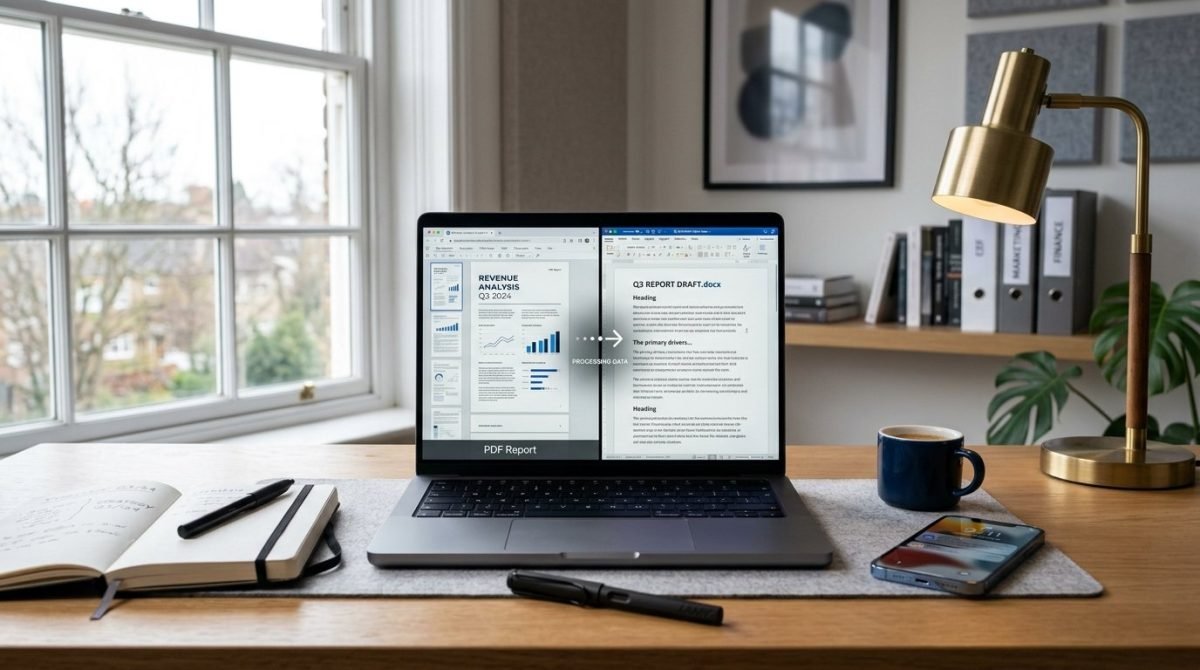 PDF Conversion
How to Convert PDF to Word Online: Complete Guide
Learn how to convert PDF to Word online and turn PDF files into editable DOCX documents — methods, limits, tips, and common problems.
Read More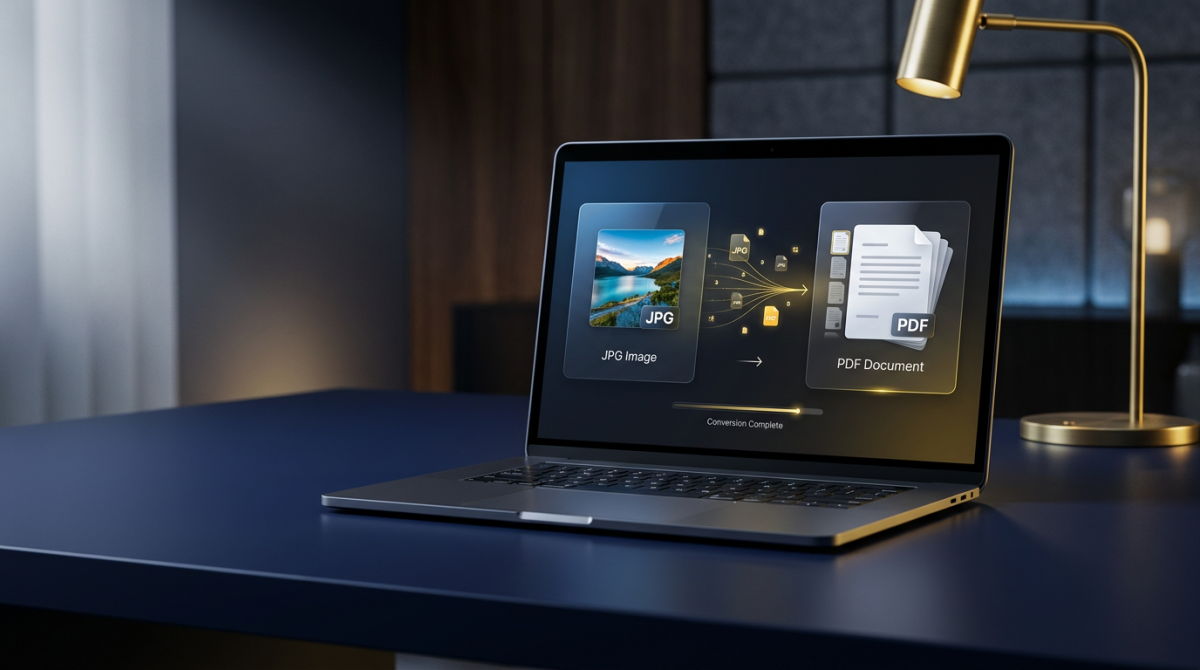 Image & PDF Guides
How to Convert JPG to PDF: The Complete Guide
Learn how to convert JPG images to PDF quickly — combine multiple JPGs, preserve quality, and create PDFs online on any device.
Read More