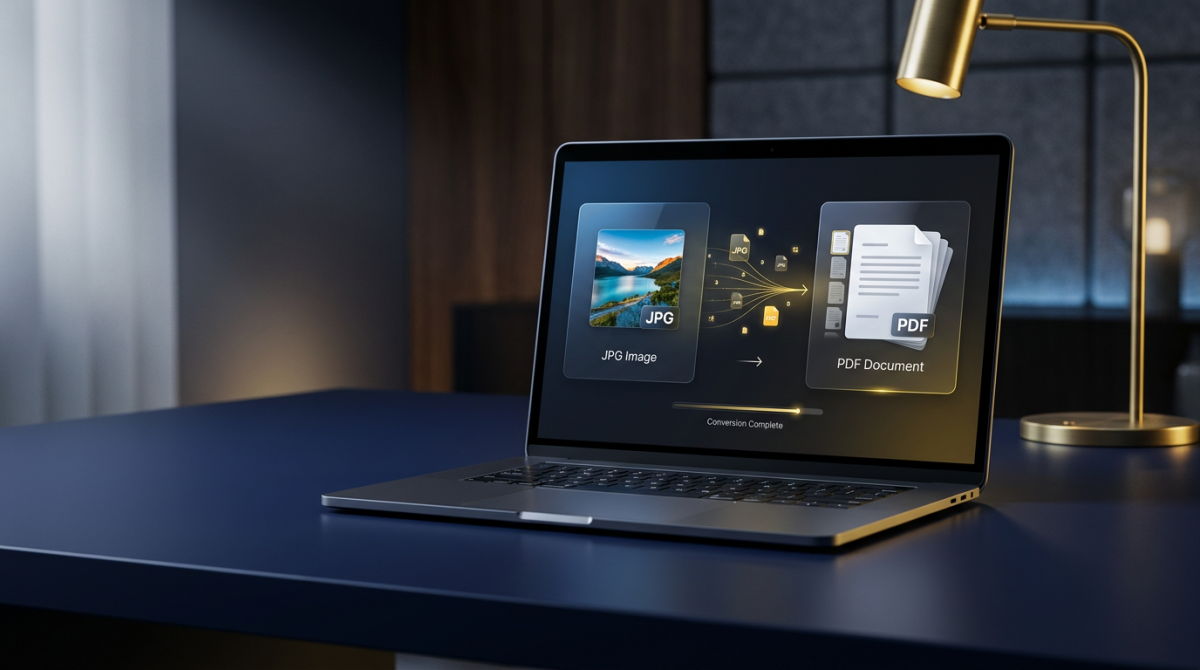
Converting a JPG to PDF is one of the most common file tasks online. Students scan homework photos, freelancers package receipts, and offices turn ID cards or signed forms into a single document they can email or archive. A good JPG to PDF converter does this in seconds — without forcing you to install desktop software or upload private images to an unknown server.
This complete guide explains what JPG to PDF conversion is, why people do it, how to convert one or many images online, how to keep quality high, and how the process works on Windows, Mac, iPhone, and Android. You will also find answers to frequent questions and links to related FlashFile tools such as PDF to JPG, Merge PDF, and Compress PDF. For device-by-device steps (Windows, Mac, iPhone, Android), see how to convert photos to PDF on any device. For a broader overview of formats and workflows, see our Ultimate Guide to PDF Conversion in 2026.
What Is JPG to PDF Conversion?
JPG to PDF conversion places one or more JPEG images inside a Portable Document Format file. The PDF becomes a container: each image is typically drawn full-page (or fitted to a page size you choose), so recipients open a familiar document instead of a loose photo file.
Unlike editing a photo in an image editor, conversion does not have to re-draw every pixel from scratch. A well-built converter embeds the original JPEG stream or re-encodes it carefully, then writes PDF page objects, dimensions, and metadata. The result is a file that looks consistent on phones, laptops, and printers — which is why people convert images to PDF before sharing.
Why Convert JPG to PDF?
People convert JPG images to PDF for practical reasons:
- Professional sharing: A PDF looks like a document, not a casual photo dump in someone’s inbox.
- Multi-page packages: Several scans or photos become one file instead of a ZIP of loose JPGs.
- Print reliability: PDF page sizes and margins behave more predictably on office printers.
- Forms and applications: Schools, banks, and government portals often require PDF uploads only.
- Archiving: Contracts, receipts, and ID copies stay readable years later in a standard format.
- Fewer format surprises: Recipients do not need a special image viewer or the same OS photo app you used.
How to Convert JPG to PDF Online
The fastest path for most people is a free JPG to PDF online tool that runs in the browser. With FlashFile, processing is client-side: your images never leave the device.
- Open the JPG to PDF tool (or browse the full tools directory).
- Drag and drop one or more JPG or JPEG files, or click to browse your device.
- Confirm the file list and order. Reorder if your converter supports drag-and-drop sorting.
- Choose options if available (page size, orientation, quality, or fit mode).
- Click convert and wait a few seconds while the browser builds the PDF.
- Download the finished PDF and open it to verify pages and clarity before you send it.
Prefer not to install desktop apps? Stick with browser conversion. It works the same way whether you need a single passport photo as PDF or a multi-page homework packet.
How to Convert Multiple JPG Images into One PDF
To convert multiple JPG to PDF as one document, select every image in a single session. Each JPG becomes a page. Name files in order (for example page-01.jpg, page-02.jpg) or rearrange them in the tool UI so page sequence matches your intent. For a full walkthrough of order, quality, and mixed sizes, see how to convert multiple JPG images into one PDF.
If you already created several single-page PDFs, use Merge PDF to combine them. To break a large multi-image PDF apart later, use Split PDF.
JPG vs JPEG: What's the Difference?
JPG and JPEG are the same format. “JPEG” is the full name of the Joint Photographic Experts Group standard; “JPG” is a three-letter extension popularized by older Windows systems. Converters treat both extensions identically. If a site says “convert JPEG to PDF,” it is the same workflow as JPG to PDF.
Does Converting JPG to PDF Reduce Image Quality?
Conversion itself does not have to reduce quality. Quality loss happens when a tool:
- Re-encodes the JPEG at a lower quality setting
- Downscales the image to a small page size at low DPI
- Applies heavy PDF compression after embedding
A careful JPG to PDF converter preserves resolution so text in scans stays readable and photos stay sharp when you zoom.
How to Convert JPG to PDF Without Losing Quality
- Start from the highest-resolution original you have — not a screenshot of a screenshot.
- Avoid “email size” or “maximum compression” presets unless you need a tiny file.
- Prefer tools that embed JPEG data cleanly rather than rasterizing through a low-DPI canvas.
- Check the PDF at 100% zoom before sending important documents.
- If the PDF is still large after a quality-first conversion, use Compress PDF with a balanced setting instead of crushing the image twice by hand.
How to Convert JPG to PDF on Windows
On Windows you can print images to Microsoft Print to PDF from Photos or File Explorer, or open a browser and use an online converter. Browser conversion is usually faster when you need multiple images in one file with a clear download button. For five step-by-step Windows methods (Print to PDF, Photos, Word, Paint, and browser tools), see how to convert JPG to PDF on Windows.
Steps with FlashFile: open Chrome or Edge, go to the JPG to PDF page, drop your files from Explorer, convert, and save the PDF to Downloads.
How to Convert JPG to PDF on Mac
macOS Preview can open images and export as PDF, and the print dialog can save as PDF. For batches, a web converter is often simpler: select many JPGs at once and download one multi-page file.
Safari, Chrome, and Firefox all run FlashFile’s client-side engine, so conversion works without installing extra Mac apps.
How to Convert JPG to PDF on iPhone
Open Safari, visit your JPG to PDF online tool, allow photo library access when prompted, select images from Photos, convert, then tap the download or share sheet to Save to Files or AirDrop. You do not need a separate App Store converter if the website is mobile-responsive and processes in the browser.
How to Convert JPG to PDF on Android
Use Chrome or another modern browser, open the converter, pick images from Gallery or Files, convert, and open the PDF with your preferred viewer or Drive upload. Client-side tools avoid uploading personal photos to third-party servers — useful for IDs and signed forms.
How Many JPG Images Can I Convert to One PDF?
There is rarely a fixed legal limit of “N pages.” Browser memory, device RAM, and total megapixels matter more. Tens of typical phone photos usually work fine. Hundreds of multi-megabyte RAW-style exports may need batching: convert groups, then merge the PDFs.
How to Convert Scanned JPG Images to PDF
Scanned pages saved as JPG convert the same way as camera photos. For best results:
- Scan at 300 DPI when text must stay crisp in print.
- Keep pages upright and in reading order before conversion.
- Use consistent page sizes so the PDF does not mix tiny and huge pages awkwardly.
- If you need selectable text later, run OCR on the PDF or images after packaging — plain image embedding alone is not searchable.
JPG to PDF vs PDF to JPG
These are opposite directions:
- JPG to PDF packages images into a document for sharing, printing, and uploads.
- PDF to JPG renders each PDF page as an image for social posts, CMS uploads, or previews.
FlashFile offers both: JPG to PDF and PDF to JPG. Round-tripping (PDF → JPG → PDF) can add compression artifacts, so keep originals when quality matters.
What Is the Best JPG to PDF Converter?
“Best” depends on priorities. For most people in 2026, the checklist is:
- Privacy: client-side processing, no forced account
- Quality: no surprise downscaling
- Batch support: multiple JPG images to one PDF
- Speed: works offline-capable in the browser once loaded
- Ecosystem: easy follow-up with compress, merge, or split tools
FlashFile is built around that checklist — a free JPG to PDF converter plus a full suite under All Tools.
Is JPG to PDF Conversion Safe?
Safety is about where the bytes go. Upload-based websites receive your photos on their servers. That may be fine for a public flyer; it is a poor fit for passports, medical scans, or contracts.
Client-side conversion keeps decoding and PDF writing inside your browser tab. FlashFile emphasizes zero uploads for this reason. Still practice basic hygiene: use HTTPS sites you trust, and close the tab when finished on a shared computer.
Common JPG to PDF Problems
- Wrong page order: Rename or reorder files before converting.
- Rotated pages: Rotate images in a photos app first, or use a PDF rotate tool after.
- Huge file size: Phone photos are multi-megapixel; compress after conversion if email limits apply.
- Blurry text: Source scan was low resolution — rescan at higher DPI rather than upscaling.
- Portal rejects PDF: Check max size and page count; compress or split as needed.
How to Make a Smaller JPG-to-PDF File
- Resize images to the dimensions you actually need (for example 1500px on the long edge for on-screen reading).
- Export photos at quality 80–90% instead of 100% when slight loss is acceptable.
- Convert to PDF, then run Compress PDF for a second, controlled pass.
- Split oversized packets with Split PDF if a portal caps upload size per file.
JPG to PDF for Students
Students photograph worksheets, lab notes, and ID cards, then upload PDF homework portals. Convert multiple page photos into one PDF, keep order clear, and compress if the LMS rejects large files. A free browser tool beats emailing a dozen separate JPGs to a professor.
JPG to PDF for Business
Teams convert receipt photos, signed paper contracts, shipping labels, and onboarding documents. Standardized PDFs simplify expense tools, CRM attachments, and long-term archives. Privacy-first conversion matters when images include customer data or employee IDs.
JPG to PDF for Documents and Applications
Visa forms, loan applications, insurance claims, and rental applications frequently demand PDF. Convert clear, well-lit photos of each required page, combine into one file when allowed, and double-check that every corner of the document is visible. When a portal wants separate files per document type, convert one JPG (or set) at a time instead of one giant merge.
Frequently Asked Questions
How do I convert JPG to PDF for free?
Use a free browser-based tool like FlashFile. Open the JPG to PDF converter, drop your image, and download the PDF. No account or payment is required, and processing stays on your device.
Can I convert multiple JPG images into one PDF?
Yes. Upload several JPG files at once in a multi-image converter. Each image becomes a page in a single PDF, usually in the order you selected or dragged them.
Does converting JPG to PDF reduce image quality?
Not if you use a quality-preserving converter. The JPG data is embedded in the PDF container. Quality only drops if the tool re-encodes or compresses the image aggressively.
What is the difference between JPG and JPEG?
There is no technical difference. JPG and JPEG are the same image format; the shorter extension was created for older systems that limited file extensions to three characters.
How many JPG images can I put in one PDF?
Most online tools support dozens of images per file. Practical limits come from browser memory and total file size rather than a hard page count. For very large batches, convert in groups and merge the PDFs.
Can I convert scanned JPG documents to searchable PDF?
A standard JPG to PDF conversion embeds the scan as an image. For searchable text, run OCR after conversion or use a tool that combines image-to-PDF with optical character recognition.
Is it safe to convert JPG to PDF online?
It depends on the tool. Upload-based converters send your files to a server. Client-side converters like FlashFile process everything in your browser so images never leave your device.
How do I convert JPG to PDF on iPhone or Android?
Open a mobile-friendly JPG to PDF converter in your phone browser, select photos from your gallery, convert, and save or share the PDF. No app install is required with browser-based tools.
How can I make a smaller JPG-to-PDF file?
Resize large photos before conversion, lower JPEG quality slightly if acceptable, or run the finished PDF through a compress PDF tool to shrink embedded images without rewriting the whole document by hand.
What is the best free JPG to PDF converter?
The best free option is one that keeps files private, preserves quality, supports multiple images, and works without installs. FlashFile’s client-side JPG to PDF tool is built for exactly that workflow.
Convert JPG to PDF with FlashFile
FlashFile’s free JPG to PDF converter runs entirely in your browser. Drop one image or many, build a clean PDF, and download instantly — with no account wall and no server upload. Pair it with merge, split, and compress tools when your workflow needs more than a single conversion.
Explore the full catalog on the All Tools page, or deepen your format knowledge with the Ultimate Guide to PDF Conversion in 2026.
Final Takeaway
Learning how to convert JPG to PDF is straightforward once you pick a trustworthy path: keep originals high quality, combine pages in the right order, and prefer client-side tools when privacy matters. Whether you are a student filing homework, a business archiving receipts, or anyone submitting an application portal upload, a solid JPG to PDF online workflow saves time and avoids format rejection.
Start with FlashFile, convert images to PDF in your browser, and use compress or merge only when the job needs it — simple, private, and ready for 2026 document standards.
Related Tools
Free client-side tools mentioned in this guide — no uploads, no sign-up.
Convert JPG to PDF with FlashFile
Free, fast, and private. Convert one or many JPG images to PDF entirely in your browser.
Related Articles
Keep reading — more PDF and image conversion guides from the FlashFile blog.
 Image & PDF Guides
How to Convert PNG to PDF Online
Learn how to convert PNG images to PDF online — combine multiple PNGs, preserve quality, and create PDFs from screenshots and graphics.
Read More Image & PDF Guides
How to Convert PDF to JPG: Complete Guide
Learn how to convert PDF pages to JPG images online — single or multiple pages, quality tips, and safe client-side conversion.
Read More Image & PDF Guides
How to Convert PDF to PNG: Complete Guide
Learn how to convert PDF pages to PNG images online — when PNG beats JPG, quality tips, and safe client-side conversion.
Read More