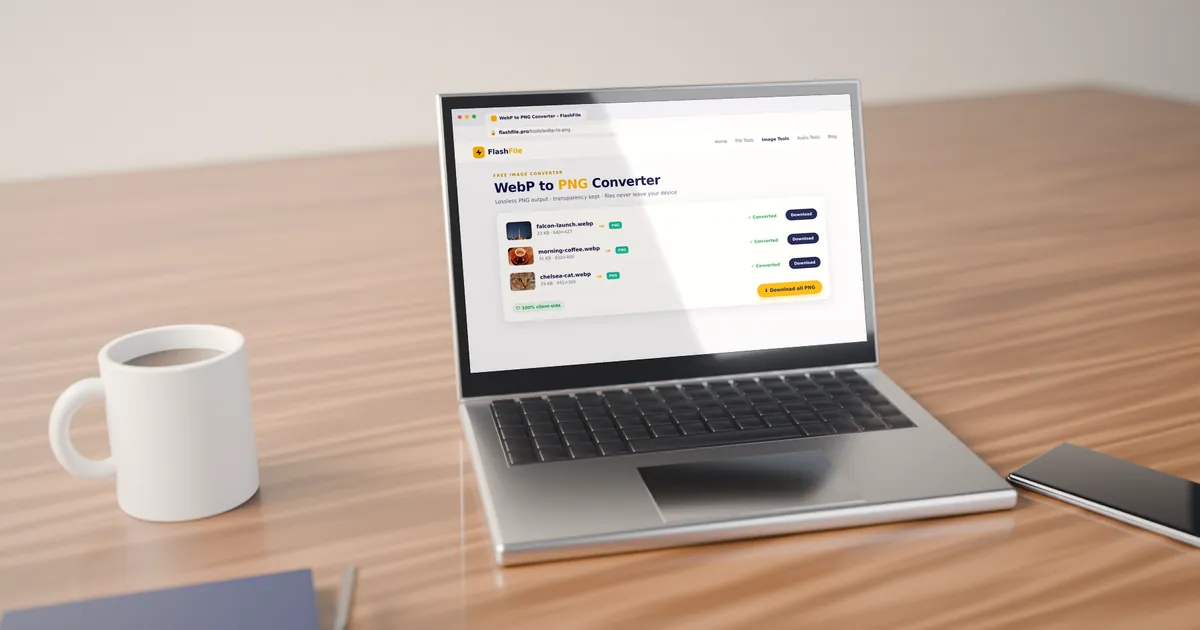
To convert WebP to PNG, open a free online converter such as FlashFile WebP to PNG, add your .webp images, click convert and download the PNG files. The conversion takes seconds, keeps transparency, and happens entirely in your browser — your images are never uploaded.
WebP is the modern image format Google created for the web, and most websites now serve their pictures as WebP. That is great for page speed, but it can be a headache when you save an image and then try to edit it, upload it to a form, or open it in an older app that only understands PNG and JPG.
This guide explains what a WebP file is, when PNG is the better choice, and every way to change WebP to PNG — online, in bulk, and with the built-in apps on Windows, Mac, iPhone and Android.
What Is a WebP File?
WebP is an image format developed by Google that can store pictures with either lossy or lossless compression. It also supports transparency (an alpha channel) and animation, which lets one format replace JPG, PNG and GIF on many websites.
According to Google’s WebP documentation, lossless WebP images are about 26% smaller than PNGs, and lossy WebP images are 25–34% smaller than comparable JPEGs. Smaller files mean faster pages, which is why browsers, CMS platforms and CDNs adopted WebP so widely.
The catch is compatibility outside the browser. Some image editors, office programs, printing services, upload forms and older operating systems still do not accept .webp files. Converting to PNG solves that instantly.
Why Convert WebP to PNG?
PNG is one of the most widely supported image formats in the world. Converting a WebP image to PNG is the right move when you need to:
- Edit the image in software that does not open WebP, or keep editing without adding compression artifacts.
- Keep a transparent background for logos, icons, stickers and product cutouts.
- Upload to a form or platform that only accepts PNG or JPG, such as some job portals, marketplaces and print shops.
- Archive a master copy in a lossless format that will open everywhere for years.
- Share with anyone without worrying about whether their device or app can display WebP.
WebP vs PNG: Key Differences
Both formats are excellent — they are simply built for different jobs. Here is how they compare:
| Feature | WebP | PNG |
|---|---|---|
| Compression | Lossy or lossless | Lossless only |
| File size | Smaller (about 26% smaller than PNG when lossless) | Larger |
| Transparency | Yes (alpha channel) | Yes (alpha channel) |
| Animation | Yes | No (still images only) |
| Compatibility | All modern browsers; some apps and older systems lack support | Practically every browser, app and device |
| Best for | Fast-loading website images | Editing, graphics, logos, screenshots, archiving |
In short: keep WebP for publishing on the web, and convert to PNG when you need maximum compatibility or a lossless file to edit. For a deeper look at PNG itself, read What Is PNG and JPG?
How to Convert WebP to PNG Online in 4 Steps
The fastest way to change WebP to PNG on any device is a browser-based converter. With FlashFile there is no account and no upload:
- 1
Open the WebP to PNG converter
Go to the free FlashFile WebP to PNG converter. It works in any modern browser on Windows, Mac, Android, iPhone and Chromebook — nothing to install.
- 2
Add your WebP images
Click Select files or drag and drop one or more .webp files into the box. You can add as many images as you like for batch conversion.
- 3
Click "Run WebP to PNG"
Each image is decoded and re-saved as PNG directly on your device, usually in under a second per image. Your files are never uploaded to a server.
- 4
Download your PNG files
Click each download button to save the new .png files. Transparent areas from the original WebP stay transparent in the PNG.
Because the conversion runs on your own device, it also works with private images — screenshots, ID scans or client work — that you would rather not send to an online server.
How to Batch Convert WebP to PNG
Saving a whole product gallery or a folder of downloaded images? Select all the WebP files at once (or drag the whole selection into the drop zone) in the WebP to PNG converter. Every file is converted in the same run, and you get a separate download for each PNG.
Tip: PNG files are larger than WebP. If you are converting many photos for email or upload, run the results through the Image Compressor afterwards, or convert to JPG instead with WebP to JPG.
How to Convert WebP to PNG on Windows, Mac and Mobile
If you prefer the apps already on your computer, these built-in methods work too:
Windows: Photos or Paint
- Right-click the WebP file and choose Open with → Photos.
- Click the … menu and select Save a copy (or Save as).
- Change the file type to PNG and save.
You can also open the image in Paint and use File → Save as → PNG picture. Note that Paint does not keep transparency — transparent areas become white — so use Photos or an online converter for logos and cutouts.
Mac: Preview
- Open the WebP image in Preview.
- Choose File → Export.
- Select PNG in the Format menu and click Save.
To convert several files, open them all in Preview, select every thumbnail in the sidebar with Cmd + A, then use File → Export Selected Images.
iPhone, iPad and Android
Phones rarely offer a built-in "save as PNG" option. The simplest method is to open flashfile.pro/tools/webp-to-png in Safari or Chrome, tap Select files, pick the image from Photos or Files, convert, and save the PNG to your device.
Which Method Should You Use?
| Method | Works on | Batch | Keeps transparency |
|---|---|---|---|
| FlashFile online converter | Any device with a browser | Yes | Yes |
| Windows Photos | Windows 10 and 11 | No | Yes |
| Windows Paint | Windows 10 and 11 | No | No (white background) |
| Mac Preview | macOS | Yes | Yes |
Tips for Perfect WebP to PNG Conversions
- Start from the largest version available. Converting cannot add resolution, so save the original-size WebP, not a thumbnail.
- Use PNG for graphics, JPG for photos. If the image is a photo and you do not need transparency, JPG gives a much smaller file — see PNG vs JPG.
- Check transparency after converting. Open the PNG on a dark background to confirm the edges look clean.
- Remember animations become still images. An animated WebP turns into a single PNG frame.
- Compress if size matters. The Image Compressor can shrink large PNGs for faster uploads.
Frequently Asked Questions
Is it free to convert WebP to PNG on FlashFile?
Yes. The WebP to PNG converter is completely free, with no sign-up, no watermark and no daily limit.
Does converting WebP to PNG reduce quality?
No. PNG is a lossless format, so the conversion keeps every pixel of the WebP image exactly as it is. It cannot restore detail that was already removed when a lossy WebP was created, but it adds no further loss.
Why is my PNG file bigger than the WebP?
WebP compresses images more efficiently than PNG. Google reports that lossless WebP files are about 26% smaller than PNGs, and lossy WebP files are smaller still, so a larger PNG is normal and expected.
Will transparency be kept when I convert WebP to PNG?
Yes. Both formats support an alpha channel, and FlashFile keeps transparent areas transparent in the PNG. If you need a white background instead, convert to JPG with the WebP to JPG tool.
Can I convert many WebP files to PNG at once?
Yes. Select or drop several WebP files together and FlashFile converts all of them in one go, giving you a download for each PNG.
Are my images uploaded to a server?
No. FlashFile converts your images inside your browser, so your files never leave your device.
What happens to animated WebP files?
PNG is a still-image format, so an animated WebP is saved as a single PNG frame (the first frame). To keep the animation, keep the WebP or convert it to a GIF or video with a dedicated tool.
How do I convert WebP to PNG on iPhone or Android?
Open flashfile.pro/tools/webp-to-png in Safari or Chrome on your phone, tap Select files, choose the WebP image from Photos or Files, run the conversion and save the PNG.
Conclusion
WebP keeps the web fast, but PNG is still the format that opens everywhere. Whenever a WebP image will not open, upload or edit the way you need, convert it to PNG in seconds with the free FlashFile WebP to PNG converter — lossless, transparent-friendly, and completely private.
Related FlashFile Tools
Free client-side tools from this guide — your files stay on your device.
Convert WebP to PNG Now
Free, fast, and private. Lossless PNG output with transparency kept — 100% client-side in your browser.
Related Articles
Keep reading — more PDF and image conversion guides from the FlashFile blog.
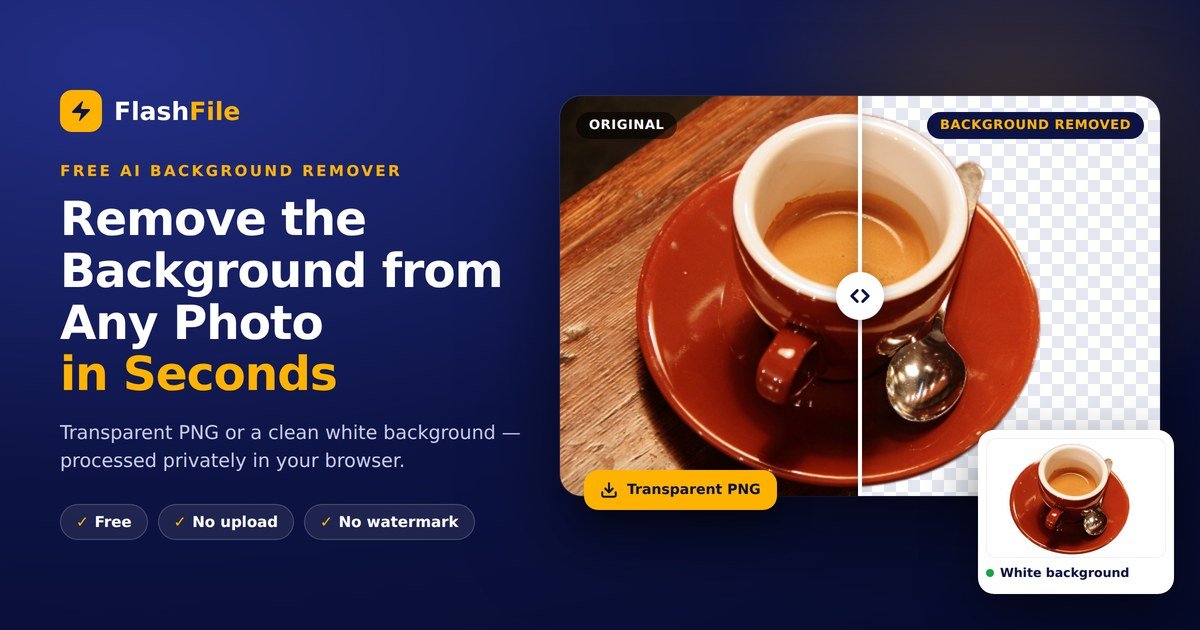 Image Tools
How to Remove Background from Image Online — Free, Fast and Private
Remove image backgrounds in seconds with free AI — no upload, no sign-up. Get a transparent PNG or a white background for products, profiles and design.
Read More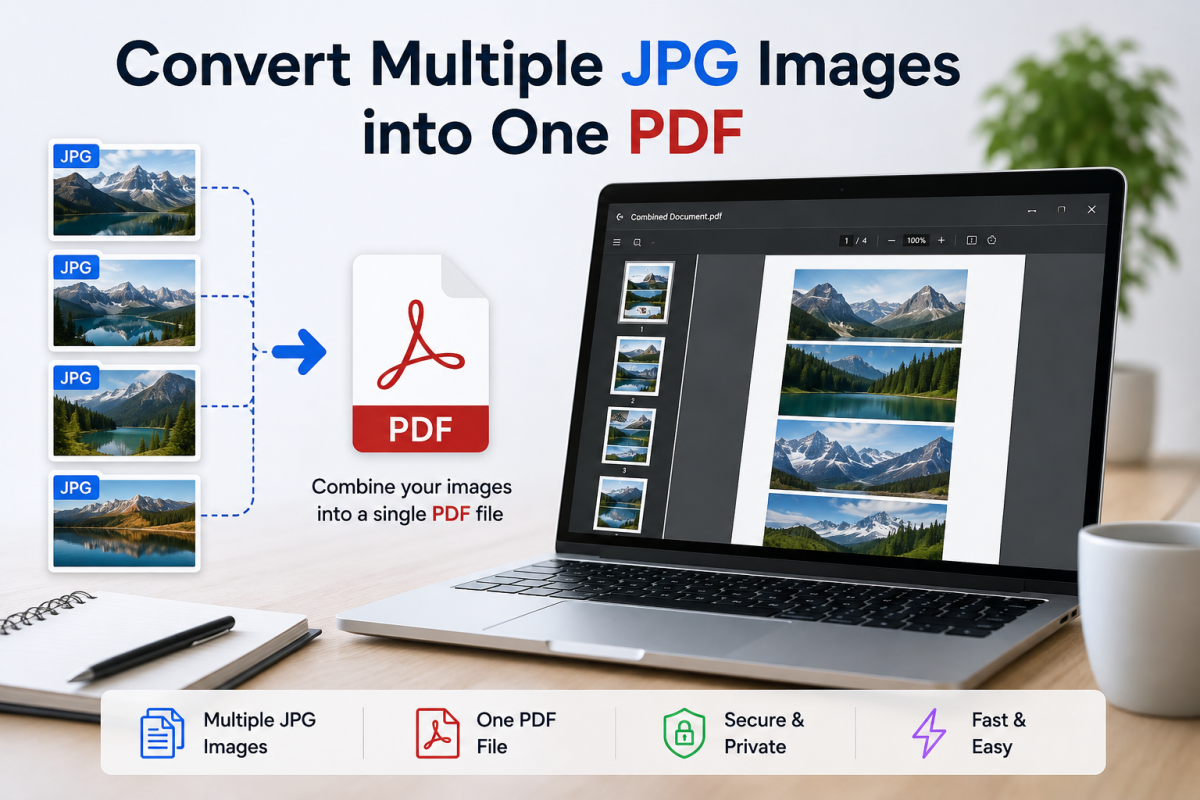 Image & PDF Guides
How to Convert Multiple JPG Images into One PDF
Learn how to convert multiple JPG images into one PDF online. Combine photos and scanned pages, arrange images, reduce file size, and create a single PDF.
Read More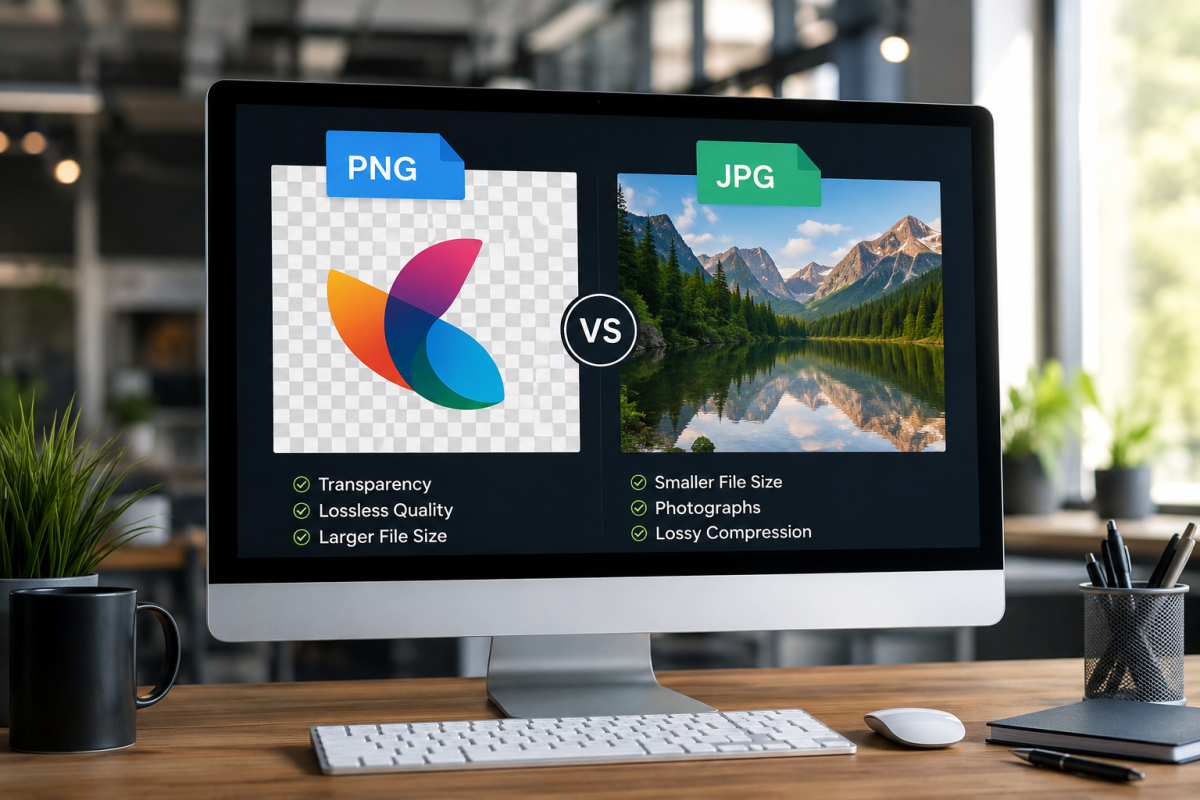 Image Tools
PNG vs JPG: Which Image Format Should You Use?
PNG vs JPG explained — quality, compression, transparency, file size, and when to choose each format or WebP.
Read More