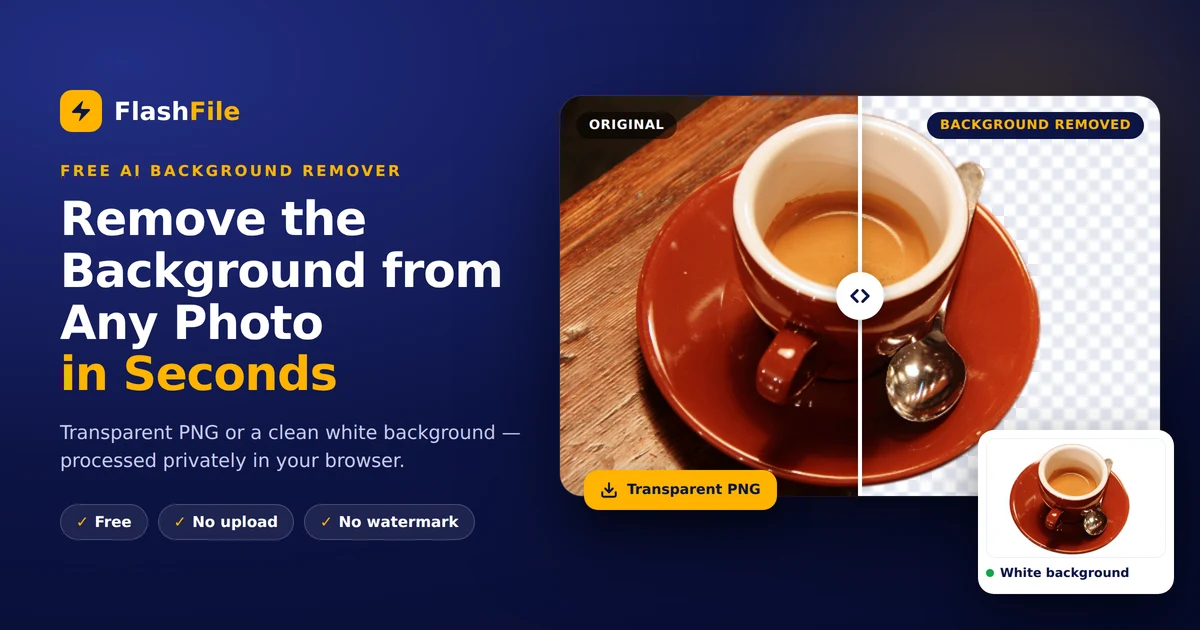
You can remove the background from any image in seconds, for free, without uploading the photo anywhere. The FlashFile Background Remover runs an AI model directly in your browser and gives you a transparent PNG, a clean white background, or a new background of your choice.
A clean cutout is one of the most requested photo edits online. Sellers need white backgrounds for marketplaces, job seekers need tidy profile photos, and designers need transparent PNGs for logos, thumbnails and ads. Until recently, that meant an hour in Photoshop with the pen tool.
This guide shows you how AI background removal works, how to get a perfect result in four steps, and which settings to use for products, portraits and social media.
What Is Background Removal and How Does AI Do It?
Background removal separates the main subject of a photo — a person, product, pet or object — from everything behind it. The result is an image where the background pixels are fully transparent, so you can place the subject anywhere.
Modern tools do this with AI image segmentation. A neural network looks at every pixel and predicts how likely it is to belong to the foreground. FlashFile uses ISNet, a model from the Dichotomous Image Segmentation (DIS) research project, run through ONNX Runtime in your browser.
Here is what happens when you click Remove Background:
- Prepare — the photo is scaled to the size the model expects; very large photos are reduced first to protect your device's memory.
- Segment — ISNet predicts a soft mask: white for the subject, black for the background, grey for fine edges such as hair and fur.
- Rescale — the mask is resized back to your original resolution, so you keep every pixel of detail.
- Refine — optional smoothing, feathering and cleanup soften jagged edges and remove leftover specks.
- Compose and export — the mask becomes the alpha channel of a PNG, or the subject is placed on the background you choose.
Because the soft mask keeps semi-transparent edge pixels, hair and fabric look natural instead of cut out with scissors.
How to Remove a Background with FlashFile in 4 Steps
The whole process takes under a minute and needs no account.
- 1
Upload your image
Open the Background Remover and drag and drop a photo, click to browse, or paste it from your clipboard. JPG, JPEG, PNG and WebP files up to 25 MB are supported.
- 2
Click Remove Background
The AI detects the subject automatically. The first run downloads the model once; after that your browser caches it and later images process much faster.
- 3
Choose a background
Keep it Transparent, or pick White, Black, a Custom Color, your own Image Background, or one from the Background Library. Use the before/after slider to check the edges.
- 4
Pick the size and download
Keep the original size or choose Square 1:1, Instagram Post 4:5, Profile Picture 1:1 or a custom width. Download as PNG, JPG or WebP.
Transparent results are always exported as PNG, because JPG cannot store transparency.
Fix tricky edges in seconds
Open Advanced — Edge Refine & Touch-up when the cutout needs polishing:
- Smooth removes jagged, stair-step edges.
- Feather softens the outline so the subject blends into a new background.
- Cleanup clears faint leftover pixels around the subject.
- Manual touch-up gives you an Erase brush for missed background and a Restore brush for parts the AI removed by mistake.
Best Uses for an AI Background Remover
The right background, size and format depend on where the image will be used.
| Use case | Background | Output size | Format |
|---|---|---|---|
| Amazon, eBay, Shopify product photos | Pure white | Square 1:1 | JPG |
| Logos, stickers, design assets | Transparent | Original size | PNG |
| LinkedIn, CV and passport-style photos | White or custom color | Profile Picture 1:1 | JPG |
| Instagram posts and ads | Custom color or image | Instagram Post 4:5 | JPG or WebP |
| YouTube thumbnails and banners | Transparent, then add in your editor | Original size | PNG |
| Website images and blogs | Transparent or white | Custom width | WebP |
E-commerce product photos
Marketplaces reward clean, consistent listings. Amazon, for example, requires the main product image to sit on a pure white background — RGB 255, 255, 255 — according to its product image requirements. Choosing White in FlashFile fills the background with exactly that color, with no off-white edges from studio lighting.
Profile pictures and portraits
A plain background makes a face the focus of a LinkedIn, CV or team-page photo. Pick a soft brand color, or blur the original background for a natural, studio-like look.
Graphic design and marketing
Transparent PNGs drop straight into Canva, Figma, PowerPoint or Photoshop. Use them for thumbnails, collages, flyers and social posts — then size them with the Social Media Image Resizer.
7 Pro Tips for a Perfect Cutout
The AI does most of the work, but the source photo decides the final quality.
- Use contrast. A dark product on a light wall, or a light product on a dark wall, gives the cleanest edges.
- Light the subject evenly. Strong shadows touching the subject can be mistaken for part of it.
- Keep the subject in focus. Sharp edges produce sharp masks; motion blur produces fuzzy ones.
- Start with a large photo. At least 1,000 px on the long side keeps detail after cropping and resizing.
- Leave some space around the subject. Cut-off edges cannot be restored by any tool.
- Zoom in before you download. Use Feather for hair and fur, and the Restore brush for thin parts such as straps or glasses arms.
- Compress at the end. Run the final file through the Image Compressor for faster pages, and use the Image Metadata Remover before sharing photos publicly.
PNG, JPG or WebP: which format should you download?
| Format | Keeps transparency | Typical file size | Best for |
|---|---|---|---|
| PNG | Yes | Largest | Logos, design layers, any cutout you will reuse |
| WebP | Yes | Smallest | Websites and blogs |
| JPG | No | Small | Marketplaces and photos on a solid background |
In short: download PNG when you need transparency, JPG for white-background product photos, and WebP for the web. You can switch later with PNG to WebP or PNG to JPG. For a deeper comparison, read PNG vs JPG: which image format should you use?
Why a Browser-Based Background Remover Is More Private
Most online background removers upload your photo to a remote server and process it there. FlashFile does the opposite: your image never leaves your device. The AI model is downloaded to your browser, and every pixel is processed locally.
| FlashFile (in-browser) | Typical upload-based tool | |
|---|---|---|
| Where the photo is processed | On your own device | On the provider's server |
| Photo uploaded to the internet | No | Yes |
| Account or sign-up | Not needed | Often needed for full resolution |
| Watermark on download | None | Common on free plans |
| Works after the model is cached | Yes, even on a slow connection | Needs an upload every time |
| Speed depends on | Your device | Your upload speed and server queue |
This matters most for sensitive images: ID photos, family pictures, unreleased products and client work. The approach builds on the open-source background-removal-js project by IMG.LY.
Frequently Asked Questions
Is the FlashFile background remover really free?
Yes. There is no sign-up, no watermark and no limit on full-resolution downloads.
Are my photos uploaded to a server?
No. The AI runs inside your browser, so the image stays on your device from upload to download.
Why is the first image slower?
The first time, your browser downloads the AI model. It is then cached, so the next images are processed much faster.
How do I make a background transparent?
Upload the image, click Remove Background and keep the Transparent option. Download the result as a PNG to keep the transparency.
Can I add a white background for Amazon or Shopify?
Yes. Choose White as the background and export as JPG. The background is pure white, RGB 255, 255, 255.
Does it work with hair, fur and complex edges?
Yes. The model keeps soft edge pixels for hair and fur. For the finest results, use Feather and the Restore brush in Edge Refine & Touch-up.
Which image formats can I use?
You can upload JPG, JPEG, PNG and WebP files up to 25 MB, and download PNG, JPG or WebP.
Does it work on mobile phones?
Yes. It works in modern mobile browsers. Very large photos are reduced before processing to avoid running out of memory.
Conclusion
You no longer need Photoshop skills or a paid subscription to get a professional cutout. Upload a photo, let the AI find the subject, choose a background and download — all in your browser, all for free. Open the free Background Remover and try it on your next photo.
Related FlashFile Tools
Free client-side tools from this guide — your files stay on your device.
Remove Your First Background Now
Free, fast, and private. Get a transparent PNG or a clean white background — 100% client-side in your browser.
Related Articles
Keep reading — more PDF and image conversion guides from the FlashFile blog.
 Image Tools
Complete Guide to Image Compression in 2026: How to Compress Images Without Losing Quality
Learn how image compression works, how to compress JPG and PNG images, reduce image file size without noticeable quality loss, and optimize images for websites and everyday use.
Read More PDF Conversion
How to Convert PDF to Word Online: Complete Guide
Learn how to convert PDF to Word online and turn PDF files into editable DOCX documents — methods, limits, tips, and common problems.
Read More Image & PDF Guides
How to Convert Scanned Images to PDF: A Complete Guide
Learn how to convert scanned images to PDF online. Combine JPG, PNG, and scanned document pages into one PDF while preserving quality and order.
Read More