
To remove the password from a bank statement PDF, open the statement in a tool such as FlashFile Unlock PDF, type the password you normally use to open it, and download the unlocked copy. It takes a few seconds, the statement stays exactly the same, and because the work happens in your browser your financial data is never uploaded.
Many banks send monthly e-statements as password-protected PDFs. That protection makes sense when the file travels by email, but it becomes tiresome when you have to type the same password every time you open the file, when an accounting app or a loan portal refuses to accept it, or when you want to merge a year of statements into one document.
This guide shows four ways to save a statement without its password — online without uploading, in Chrome or Edge, with Preview on a Mac, and with Adobe Acrobat — plus what to do if the password is rejected and how to keep the unlocked copy safe.
Why Bank Statements Are Password Protected
A statement contains your name, address, account number and every transaction for the month — exactly the details a fraudster would want. Encrypting the PDF means that if the email is forwarded by mistake or an inbox is compromised, the attachment is still unreadable without the password.
The password is usually not something you chose. Banks typically build it from details only you should know, such as part of your name combined with your date of birth, or some digits of your account, card, customer or national ID number. The exact rule differs from bank to bank and is normally explained in the email that delivers the statement or on the bank’s help pages.
Once the statement is safely on your own device, the protection has done its job. Saving an unlocked copy for your personal records is a common and reasonable step — as long as you then store that copy securely.
Before You Start: Two Things to Know
- You need the password. Legitimate tools — including FlashFile — remove the password only after you enter it. If you do not know it, no honest tool can unlock the file; contact your bank instead.
- Only unlock documents you are entitled to use. Your own statements are fine. Do not remove protection from documents that belong to someone else without their permission.
There are actually two different kinds of PDF protection. Understanding which one your file has explains why some statements unlock without a password:
| Protection type | What it does | Do you need the password to remove it? |
|---|---|---|
| Open password (user password) | The PDF cannot be viewed at all until the password is typed. Most bank statements use this. | Yes — enter it once in the unlock tool. |
| Permissions password (owner password) | The PDF opens normally, but printing, copying text or editing is blocked. | Usually not — the tool can lift the restrictions directly. |
Method 1: Remove the Password Online Without Uploading (FlashFile)
This is the quickest method on any device, and the only online option where your statement never leaves your computer or phone. FlashFile uses the open-source qpdf engine, compiled to run inside the browser, to decrypt the file locally.
- 1
Open the Unlock PDF tool
Go to the free FlashFile Unlock PDF tool in any browser — Chrome, Safari, Edge or Firefox, on a computer or a phone. Nothing to install and no account.
- 2
Select your bank statement
Click Select file or drag the protected PDF into the box. The file is read by your browser; it is not uploaded anywhere.
- 3
Type the statement password
Enter the same password you use to open the statement, then press Run Unlock PDF. If the file only has printing or copying restrictions, you can leave the box empty.
- 4
Download the unlocked copy
Save the new file (it ends in -unlocked.pdf). It opens without a password from now on, and every page, number and line of text is exactly as it was.
Because nothing is uploaded, this method is also suitable for payslips, tax documents, insurance letters and any other password-protected PDF you own.
Method 2: Google Chrome or Microsoft Edge (Print to PDF)
If you prefer not to use a dedicated tool, a desktop browser can create an unprotected copy by “printing” the statement to a new PDF:
- Drag the statement into a Chrome or Edge window and type the password when asked.
- Press Ctrl + P (Cmd + P on a Mac).
- Choose Save as PDF as the destination (in Edge you can also pick Microsoft Print to PDF).
- Click Save. The new file has no password.
Limitations: printing creates a brand-new document, so clickable links and bookmarks may disappear, and if the bank disabled printing the browser cannot use this route. Method 1 keeps the original file intact instead of re-printing it.
Method 3: Preview on a Mac
- Open the statement in Preview and enter the password.
- Choose File → Export.
- Keep the format as PDF, make sure Encrypt is not ticked, and click Save.
The exported copy opens without a password. On an iPhone or iPad there is no built-in equivalent, so use Method 1 in Safari.
Method 4: Adobe Acrobat Pro
If you already pay for Adobe Acrobat Pro, open the statement, enter the password, open the Protect tool and choose Remove security, then save. The free Acrobat Reader cannot remove passwords, so this route only makes sense if you have the paid version.
Which Method Should You Use?
| Method | Cost | File uploaded? | Works on phones | Keeps the original file intact |
|---|---|---|---|---|
| FlashFile Unlock PDF | Free | No — processed in your browser | Yes | Yes |
| Chrome / Edge “Save as PDF” | Free | No | No | No — re-printed copy |
| Mac Preview export | Free | No | No | Re-saved by Preview |
| Adobe Acrobat Pro | Paid subscription | No | Limited | Yes |
Whatever you choose, avoid upload-based “unlock” websites for bank documents unless you trust them with your account details: the file and the password are sent to their servers.
If the Password Is Rejected
- Check the format. A date of birth might be expected as DDMMYYYY, DDMMYY or YYYYMMDD — the bank’s email usually gives an example.
- Check capital letters. If the rule uses letters from your name, it may expect them in upper case.
- Type it instead of pasting. Copying from an email can add an invisible space at the end.
- Make sure it is the latest password. Some banks change the rule over time, so an old statement and a new one may use different passwords.
- Damaged file? If the tool says the PDF could not be unlocked and the password is definitely right, download the statement again or try Repair PDF.
If none of this works, contact your bank — it is the only party that can tell you the correct password.
What to Do After Unlocking Your Statements
An unlocked statement works with every other PDF tool, which opens up some useful next steps:
- Combine a year of statements into one file for a visa, mortgage or tax application with Merge PDF.
- Analyse your spending by moving the transaction tables into a spreadsheet with PDF to Excel.
- Share only what is needed by blacking out account numbers with Redact PDF or keeping just a few pages with Extract Pages.
- Meet upload size limits with Compress PDF.
For an overview of every PDF task you can do in your browser, see The Ultimate Guide to PDF Conversion.
Keep Your Unlocked Statements Safe
- Store them in one private place, such as an encrypted folder or a cloud drive protected with two-step verification.
- Delete stray copies from your Downloads folder and from shared or family computers.
- Do not email unlocked statements unless necessary; if you must, share only the relevant pages and redact what the recipient does not need.
- Lock your devices with a PIN, password or biometrics, since anyone using an unlocked laptop can now open the files.
Frequently Asked Questions
Is it legal to remove the password from my bank statement?
Removing the password from a statement that belongs to you, for your own use, is generally fine — you are simply saving a copy you already have access to. Only unlock documents you own or are authorised to use, and keep the unlocked copy private.
Can I remove the password if I do not know it?
No. FlashFile does not guess or crack passwords. You need the password the bank set for the statement. If you have lost it, check the email the statement came with or ask your bank how its statement passwords are formed.
Will unlocking change my statement in any way?
No. Only the encryption is removed. Pages, balances, transactions, logos and the text layer stay identical, so the statement remains readable and searchable.
Is my statement uploaded to FlashFile’s servers?
No. The unlocking runs inside your browser, so neither the PDF nor the password is sent to a server. That is why it is safe to use for financial documents.
Why does it say the password is incorrect?
Check capital letters, the date format the bank uses (for example DDMMYYYY versus DDMMYY) and whether the password combines several pieces, such as part of your name plus your date of birth. Copy-pasting the password from an email can also add a hidden space at the end.
Can I unlock statements on my phone?
Yes. Open flashfile.pro/tools/unlock-pdf in Safari or Chrome, pick the PDF from Files or your downloads, enter the password and save the unlocked copy.
Can I unlock several statements at once?
Unlock them one after another — each takes only a few seconds. Once they are unlocked you can combine them into a single file with Merge PDF.
Conclusion
Typing a password every time you open a bank statement is a small but constant annoyance, and protected files often get in the way of merging, converting or uploading. Enter the password once in the free FlashFile Unlock PDF tool, save an unlocked copy for your records, and keep it somewhere private. Your statement stays identical — and because it is processed in your browser, it never leaves your device.
Related FlashFile Tools
Free client-side tools from this guide — your files stay on your device.
Unlock Your Statement Now
Free, fast and private. Enter the password once and save a copy that opens without it — processed entirely in your browser.
Related Articles
Keep reading — more PDF and image conversion guides from the FlashFile blog.
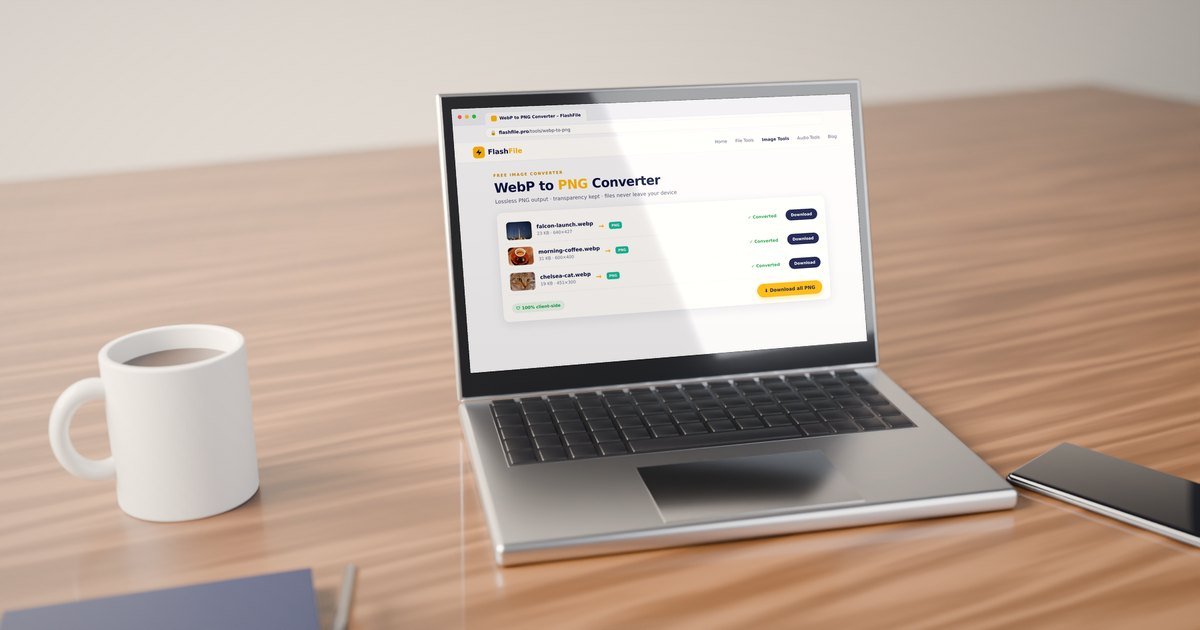 Image Tools
How to Convert WebP to PNG: The Complete Guide (Free & Lossless)
Convert WebP to PNG online for free in seconds — no upload, no sign-up. Keep transparency, convert in bulk, or use Windows, Mac, iPhone and Android. Step-by-step guide.
Read More Image Tools
Complete Guide to Image Compression in 2026: How to Compress Images Without Losing Quality
Learn how image compression works, how to compress JPG and PNG images, reduce image file size without noticeable quality loss, and optimize images for websites and everyday use.
Read More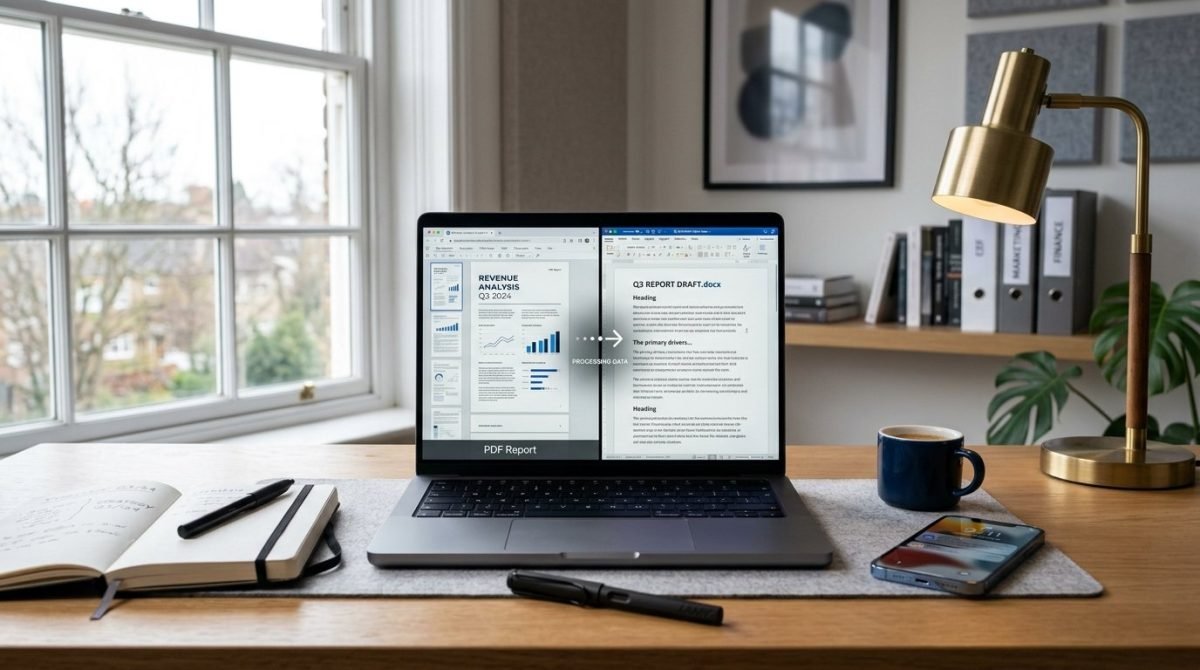 PDF Conversion
How to Convert PDF to Word Online: Complete Guide
Learn how to convert PDF to Word online and turn PDF files into editable DOCX documents — methods, limits, tips, and common problems.
Read More