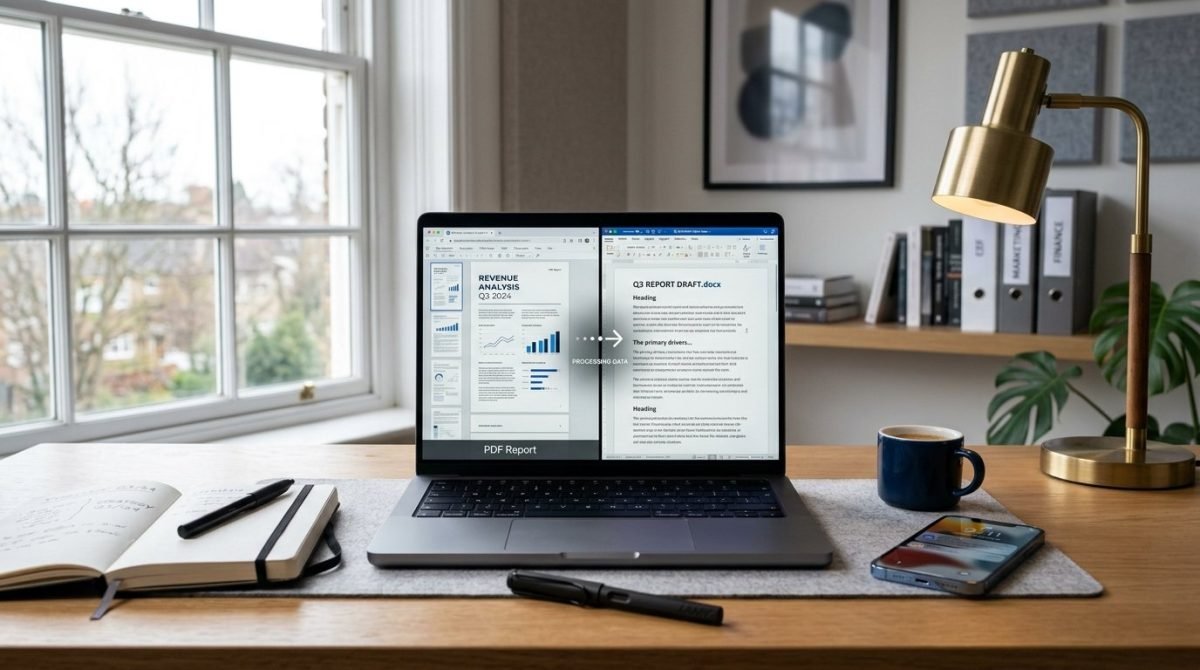
Learning how to convert PDF to Word online is essential whenever a finished PDF needs real edits — new paragraphs, corrected figures, rewritten headings, or comments in Microsoft Word. A solid PDF to Word converter turns a fixed PDF into an editable DOCX so you can revise content without retyping the whole document.
This complete guide covers what PDF to DOCX conversion actually does, when it works well, where it fails, step-by-step online conversion, scanned-file OCR, quality tips, troubleshooting, and FAQs. You will also find links to related FlashFile tools such as Word to PDF, PDF to JPG, PDF to PNG, and the full PDF tools directory. For image-focused workflows, explore Image Tools.
Quick Answer: How to Convert PDF to Word Online
- Open FlashFile’s free PDF to Word tool in your browser.
- Drop your PDF into the upload area (or browse to select it).
- Start conversion — text is extracted and rebuilt as DOCX locally when using a client-side tool.
- Download the .docx file.
- Open it in Word or Google Docs, fix spacing or headings if needed, then save.
That is the core of convert PDF to Word online. The sections below explain limitations, scanned PDFs, privacy, and how to get cleaner editable results.
What Is PDF to Word Conversion?
PDF (Portable Document Format) is designed to look the same on every device. It freezes fonts, positions, and page boxes. Word’s DOCX format is designed for editing: flowing paragraphs, styles, and collaboration. When you convert PDF to editable Word, software reads the PDF’s text layer (and sometimes layout hints) and writes a new DOCX document.
A good PDF to DOCX pipeline preserves reading order, paragraph breaks, and basic heading structure. It does not magically recreate every design detail. Think of PDF to Word as “recover editable text with useful structure,” not “pixel-perfect redesign.”
Why Convert PDF to Word? (Common Use Cases)
- Edit contracts and proposals: Change dates, names, or clauses without starting from a blank page.
- Reuse report content: Pull sections from a PDF report into a new Word draft.
- Collaborate in Word or Docs: Teammates prefer track changes and comments in DOCX.
- Fix typos in “final” PDFs: When the original source file is missing, PDF to Word is often the fastest path.
- Repurpose for new formats: After editing in Word, export again with Word to PDF for distribution.
How PDF to DOCX Conversion Works
Under the hood, converters usually follow this path:
- Parse the PDF and locate the text layer (glyphs + positions).
- Group characters into words, lines, and paragraphs.
- Infer structure such as titles, headings, and lists from font size and spacing.
- Write a DOCX package (XML + styles) that Word can open.
- Optionally attempt tables, images, or OCR for scans — quality varies widely by tool.
FlashFile’s browser-based PDF to Word tool focuses on extracting the selectable text layer and rebuilding a real editable .docx with headings and paragraphs. Complex multi-column layouts and embedded images are not fully reproduced — which is an honest limitation shared by many lightweight converters.
How to Convert PDF to Word Online (Step by Step)
Step 1 — Choose a trustworthy converter
Prefer tools that process files in the browser for private documents. Open PDF to Word on FlashFile — no account required.
Step 2 — Prepare the PDF
Use the final text-based PDF when possible. If the file is password-protected, unlock it first. If it is a scan, run OCR PDF so text becomes selectable before conversion.
Step 3 — Upload or drop the file
Drag the PDF into the drop zone or select it from disk. Confirm you chose the correct version.
Step 4 — Convert PDF to DOCX
Start conversion. Client-side engines read the text layer locally and build the Word file in memory. Large files take longer because every page’s text must be ordered and packaged.
Step 5 — Download and review
Open the DOCX, scan headings, lists, and tables, then apply Word styles as needed. Keep the original PDF until the edit is approved.
PDF to Word vs Other Conversion Paths
| Goal | Best path | Notes |
|---|---|---|
| Edit body text | PDF to Word | Best for text-based PDFs |
| Plain copy only | PDF to Text | No styles; fastest extract |
| Share page as image | PDF to JPG / PDF to PNG | Not editable as text |
| Publish final layout | Word to PDF | After you finish edits in Word |
Text-Based PDF vs Scanned PDF
Text-based PDFs contain a real text layer. You can select words with the cursor. These convert to Word with the highest accuracy.
Scanned PDFs are photos of pages. Without OCR, a PDF to Word converter has nothing to extract. Run OCR first, verify the recognized text, then convert PDF to editable Word. Expect more cleanup on low-quality scans, skewed pages, or handwriting.
What Converts Well — and What Does Not
Usually works well
- Single-column letters and reports
- Simple headings and body paragraphs
- Bullet lists with clear spacing
- Standard left-to-right Latin text
- PDFs exported from Word originally
Often needs cleanup
- Multi-column magazines and newspapers
- Complex nested tables
- Text inside images or charts
- Heavy design with text boxes
- Low-quality scans without OCR
Tips for Better PDF to Word Results
- Start from the highest-quality source PDF you have — not a re-scanned printout.
- Unlock encryption before conversion.
- OCR scans and spot-check a few pages before trusting the DOCX.
- After conversion, apply Word’s built-in Heading 1 / Heading 2 styles for a clean outline.
- Remove repeated headers/footers that became body paragraphs.
- If you only need a page preview, use PDF to JPG instead of forcing a text conversion.
- Keep the original PDF as the legal or archival copy when formatting is critical.
Privacy and Safety When Converting Online
Many “free PDF to Word online” sites upload your file to a remote server. That can be a risk for NDAs, HR files, medical forms, and financial statements. Ask:
- Does processing happen in the browser (client-side) or on a server?
- Is HTTPS used end to end?
- Does the site claim to delete uploads — and can you verify the claim?
- Do you need an account (extra data exposure) for a simple conversion?
FlashFile’s converters are built for local, browser-based processing so files stay on your device during conversion. That model is a strong default for sensitive PDF to DOCX work.
Convert PDF to Word on Desktop and Mobile
Windows and Mac
Use Chrome, Edge, Firefox, or Safari. Open the converter, drop the PDF, download the DOCX, and open it in Microsoft Word, LibreOffice Writer, or Pages (via conversion). Desktop browsers handle larger files more comfortably than phones.
iPhone and Android
Open the same PDF to Word online page in your mobile browser, pick the file from Files, Drive, or Downloads, convert, then open the DOCX in Word mobile or Google Docs. For long reports, desktop still gives a better review experience.
Common PDF to Word Problems (and Fixes)
- Empty or gibberish DOCX: The PDF may be a scan or use unusual encoding. Run OCR or try extracting with PDF to Text to diagnose.
- Broken reading order: Multi-column layouts confuse simple extractors. Split the PDF into single-column sections when possible, or clean order manually in Word.
- Missing images: Text-first converters may skip graphics. Export key pages with PDF to PNG and insert them into the DOCX.
- Odd line breaks: PDF stores visual lines, not paragraphs. Join lines in Word and apply Normal style.
- Password errors: Unlock the PDF before conversion; do not paste secrets into untrusted sites.
After Conversion: Clean Up Checklist
- Set document language and proofing options.
- Map titles to Heading styles for navigation pane and TOC.
- Normalize fonts to your brand stack.
- Rebuild critical tables if cells merged incorrectly.
- Re-insert logos or charts from the original PDF pages if needed.
- Export a fresh PDF with Word to PDF when the edit is final.
Related Image and PDF Guides
If your workflow mixes documents and images, these FlashFile guides pair well with PDF to Word:
Frequently Asked Questions
How do I convert PDF to Word online for free?
Open a free PDF to Word converter in your browser, upload the PDF, run conversion, and download the DOCX. Client-side tools such as FlashFile extract text in the browser so the file does not need to be uploaded to a remote server.
Can I convert PDF to DOCX and keep the layout perfect?
Not always. PDF stores fixed page layout; Word stores flowing text. Simple single-column documents convert cleanly. Multi-column layouts, complex tables, and design-heavy pages often need manual cleanup after PDF to Word conversion.
Does PDF to Word work on scanned PDFs?
Only if the tool runs OCR first. A pure text-layer extractor cannot edit a scan that is only images. Run OCR on the PDF, then convert PDF to Word, or use a converter that includes OCR.
Is it safe to convert PDF to Word online?
Upload-based converters send your document to a server. For contracts, IDs, and internal reports, prefer a client-side PDF to Word converter that processes files locally in the browser.
What is the difference between PDF to Word and PDF to text?
PDF to text gives a plain .txt file with no formatting. PDF to Word builds a real .docx with paragraphs and heading structure so you can edit in Microsoft Word, Google Docs, or LibreOffice.
Can I convert password-protected PDFs to Word?
You must unlock the PDF first with the correct password. After the file is unlocked, run PDF to DOCX as usual. Do not share passwords with untrusted online services.
Why is my converted Word file messy?
Common causes include multi-column layouts, text boxes, embedded fonts that map poorly, tables drawn as lines, and scanned pages without OCR. Simplify the PDF or clean headings and spacing in Word after conversion.
How do I convert PDF to editable Word on mobile?
Open a mobile-friendly PDF to Word online tool in your phone browser, choose the PDF from Files or Drive, convert, and open the DOCX in Word or Google Docs. No desktop install is required.
Will images and charts transfer to the Word file?
It depends on the converter. Many lightweight client-side tools focus on the text layer and do not fully rebuild images, columns, or vector charts. Expect to re-insert critical graphics when layout fidelity matters.
What is the best free PDF to Word converter?
Choose a tool that is honest about limitations, supports DOCX download, handles text-based PDFs well, and protects privacy. FlashFile’s free PDF to Word converter extracts text locally and rebuilds an editable DOCX in your browser.
Final Takeaway
Converting PDF to Word online is the practical way to recover editable text when the original DOCX is gone. Success depends on the source: text-based PDFs convert cleanly; scans need OCR; design-heavy pages need cleanup. Choose a private, client-side PDF to Word converter, review the DOCX carefully, and only then redistribute.
Start with FlashFile’s free PDF to DOCX tool, pair it with OCR or image export when the job demands it, and keep your full toolkit handy in the tools directory.
Related Tools
Free client-side tools mentioned in this guide — processed in your browser.
Convert PDF to Word with FlashFile
Free, fast, and private. Turn PDF text into an editable DOCX entirely in your browser.
Related Articles
Keep reading — more PDF and image conversion guides from the FlashFile blog.
 PDF Guides
The Ultimate Guide to PDF Conversion in 2026
Everything you need to know about PDF conversion: what it is, how it works, which tools to trust, how to convert between formats, compress files, and stay safe online.
Read More Image Tools
Difference Between PNG and JPG: A Complete Guide
Learn the difference between PNG and JPG — quality, compression, file size, transparency, and when to use each format.
Read More Image Tools
How to Compress an Image to 100KB Online
Learn how to compress an image to 100KB online — best formats, resizing tips, quality-preserving techniques, and private browser tools.
Read More