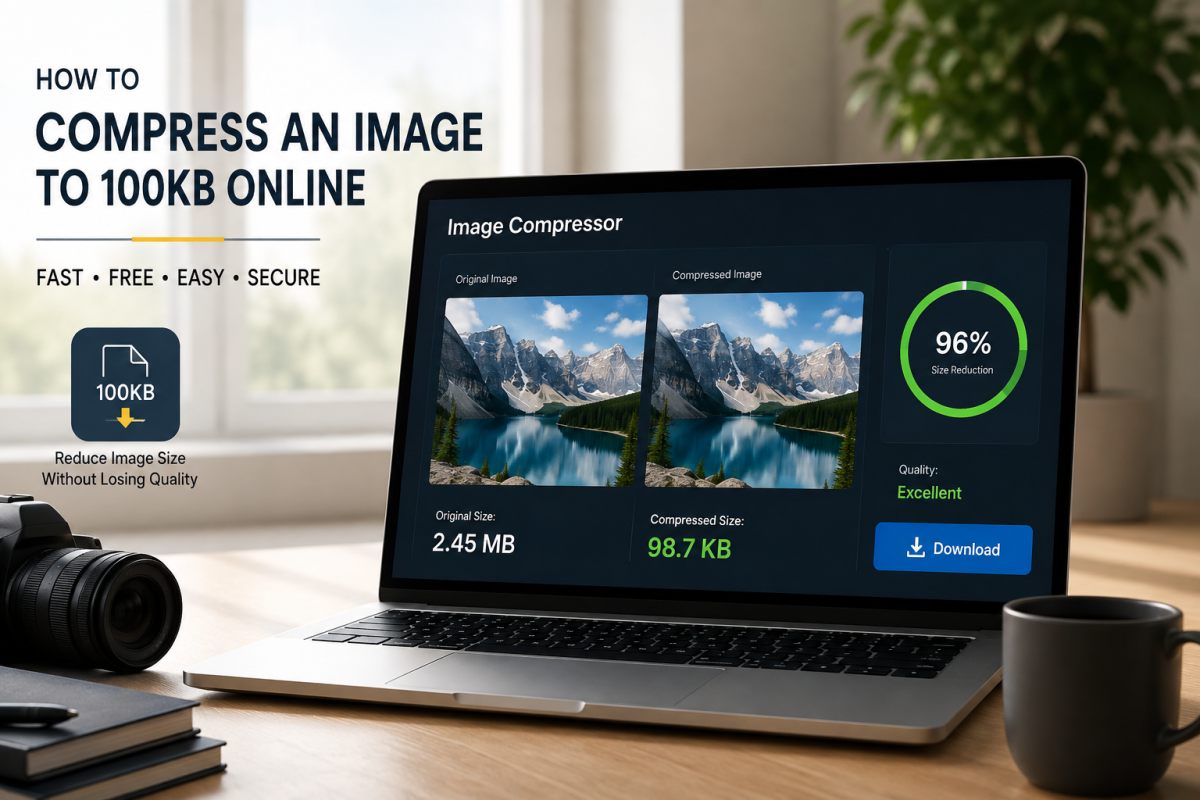
Need to upload an image with a 100KB file-size limit? Compressing an image to 100KB can be challenging because simply lowering the image quality may make it blurry or pixelated.
The key is to balance file size, image dimensions, format, and visual quality. In this guide, you'll learn how to compress an image to 100KB online, which formats work best, how to preserve quality, and what to do when an image is still too large.
If you need to do it immediately, try the FlashFile Image Compressor or the dedicated Compress Image to 100KB tool and optimize your image directly in your browser. For broader techniques, see How to Compress an Image Without Losing Quality.
What Does "Compress an Image to 100KB" Mean?
When an image must be 100KB or smaller, its final file size needs to be reduced to approximately 100KB or less.
For example:
- Original image: 2.8MB
- After compression: 850KB
- Further optimization: 320KB
- Final result: 95KB
The exact result depends on the original image, its dimensions, colors, format, and compression settings. A 100KB target is particularly common when uploading images to websites, forms, applications, and platforms with strict file-size restrictions.
Why Compress an Image to 100KB?
There are many situations where a 100KB image limit is useful.
Website Uploads
Some websites impose maximum image-size requirements for profile pictures, listings, articles, or forms.
Online Forms
Government, education, employment, and registration portals may restrict uploaded images to a specific size.
Email Attachments
Smaller images are easier to attach and send.
Faster Websites
Smaller image files generally require less bandwidth and can contribute to faster page loading when properly implemented.
Mobile Users
Reducing image size can also make uploading and downloading images more convenient on mobile connections.
How to Compress an Image to 100KB Online
The simplest approach is to use an image compression tool that lets you reduce the file size while checking the final result.
Step 1: Choose Your Image
Select the JPG, PNG, or other supported image you want to compress. If the original image is several megabytes, don't worry. Large images can often be reduced substantially.
Step 2: Open an Image Compressor
Use the FlashFile Image Compressor or Compress Image to 100KB to start optimizing your image. Upload the image through the tool.
Step 3: Reduce the File Size
Adjust the compression settings until the output reaches your target. The goal is not simply to make the image as small as possible. Instead, aim for: small file size + acceptable visual quality.
Step 4: Check the Output
Compare the compressed image with the original. Look carefully at text, faces, fine details, edges, shadows, gradients, and small objects.
Step 5: Download the Optimized Image
Once the image reaches approximately 100KB or less and still looks good, download the new file. Your original image should remain unchanged.
What If the Image Is Still Larger Than 100KB?
This is one of the most common problems when trying to reach a strict file-size limit. If compression alone isn't enough, resize the image.
For example:
4000 × 3000 → 1600 × 1200
Reducing the pixel dimensions can dramatically decrease the amount of data contained in the image. You can use the FlashFile Image Resizer to reduce the dimensions before compressing the image again.
Recommended workflow: Resize → Choose an efficient format → Compress → Check quality. This is often more effective than applying extremely aggressive compression.
Which Image Format Is Best for 100KB?
The format can have a major impact on the final file size.
| Format | Best Use | 100KB Optimization |
|---|---|---|
| JPG | Photographs | Excellent |
| PNG | Graphics and transparency | Moderate |
| WebP | Web images and photographs | Excellent |
| SVG | Logos and vector graphics | Excellent for vector artwork |
JPG
JPG is usually a strong choice for photographs. It provides good compression and can reduce complex photographs to relatively small files.
PNG
PNG is useful for graphics, screenshots, logos, and transparent images. However, a detailed PNG photograph may remain relatively large.
WebP
WebP is an efficient modern format that can provide a good balance between file size and visual quality.
For a deeper comparison, see PNG vs JPG: Which Image Format Should You Use?.
Can You Compress JPG to 100KB?
Yes. JPG images are often relatively easy to reduce to 100KB because JPG uses lossy compression. However, the result depends heavily on original dimensions, original file size, image complexity, compression level, and quality requirements.
A simple image with large areas of uniform color can reach 100KB more easily than a highly detailed photograph.
Can You Compress PNG to 100KB?
Yes, but it can be more difficult. PNG is designed for lossless compression, so detailed images may remain relatively large.
If transparency isn't required, converting the image to JPG or WebP may produce a significantly smaller file. For example: Large PNG → JPG/WebP → Compress → ≤100KB.
Always check the result afterward, particularly if the image contains transparency or sharp text.
How to Compress an Image to 100KB Without Losing Quality
Technically, reaching exactly 100KB with zero quality loss isn't always possible. Instead, the goal should be to achieve the smallest practical file size while keeping the visual difference difficult to notice. Here are the most effective techniques.
1. Resize Excessively Large Images
Don't keep a 5000-pixel-wide image if it will only be displayed at 1000 pixels. Use the Image Resizer first when dimensions are oversized.
2. Use the Right Format
Choose JPG or WebP for many photographs and PNG when transparency or lossless quality is important.
3. Avoid Extreme Compression
Very aggressive compression can create blurry details, block artifacts, color banding, and jagged edges.
4. Remove Unnecessary Metadata
Some images contain EXIF and other metadata that can increase file size. Try the Image Metadata Remover.
5. Compare the Result
A file that is 98KB isn't necessarily better than one that is 110KB if the latter looks significantly better and the platform allows it.
100KB vs 200KB vs 500KB: Which Should You Choose?
The ideal file size depends on the requirements of the platform.
| Target | Typical Use |
|---|---|
| 50KB | Small icons, thumbnails, strict upload limits |
| 100KB | Forms, profile images, websites with restrictions |
| 200KB | General web images |
| 500KB | Higher-quality website photographs |
| 1MB+ | Large photographs and detailed images |
If a platform specifically requires 100KB maximum, make sure your final file is below the stated limit rather than assuming "approximately 100KB" will be accepted. When the limit is higher, try Compress Image to 200KB.
How to Get an Image Below 100KB
If your image is currently 1MB or larger, use this process:
- Original — start from the master file (e.g. 1.5MB).
- Resize — reduce unnecessarily large dimensions.
- Convert — consider JPG or WebP when appropriate.
- Compress — reduce quality gradually.
- Final — aim for about 95KB under the hard cap.
This approach generally produces better results than immediately selecting maximum compression.
How to Compress Multiple Images to 100KB
If you have many images that need optimization, processing them individually can take a lot of time. A bulk image compressor can make the workflow much faster.
For example, you may have:
- 20 product photos
- 50 blog images
- 100 social media images
Instead of processing every image individually, use a bulk workflow when supported. Browse FlashFile Image Tools for the full set of image-processing utilities.
Is Online Image Compression Safe?
Before uploading an image to any online compression service, check how the service processes files. Some services upload images to remote servers for processing. FlashFile's supported client-side image tools are designed to process files directly in the user's browser, meaning the file can be processed without sending it to a FlashFile processing server. This approach is particularly useful when working with private photographs or sensitive documents — 100% Client-Side — Your image never leaves your device.
Common Mistakes When Compressing Images to 100KB
- Compressing too aggressively — the smallest possible file isn't always the best result.
- Ignoring image dimensions — a massive image may remain difficult to reduce without sacrificing quality.
- Using PNG for everything — PNG isn't always the most efficient choice for photographs.
- Recompressing the same image repeatedly — repeated lossy compression can progressively degrade image quality. Keep the original and create a new optimized version.
- Forgetting the actual upload requirement — some websites say "100KB maximum," while others may have a different limit. Always check the platform's exact requirements.
Frequently Asked Questions
How do I compress an image to exactly 100KB?
Use an image compressor and adjust the quality and dimensions until the output is at or below 100KB. Because different images compress differently, there is no universal setting that produces exactly 100KB.
How can I compress an image to 100KB without losing quality?
Resize unnecessarily large images, choose an appropriate format, and use moderate compression. You may not be able to achieve literally zero quality loss, but you can often make the visual difference difficult to notice.
What is the best format for a 100KB image?
For photographs, JPG or WebP is often a good starting point. PNG can be preferable for transparency, logos, and certain graphics.
Can I compress a 1MB image to 100KB?
Yes, in many cases. However, the final quality depends on the original image's dimensions, format, and complexity.
Can I compress a PNG to less than 100KB?
Yes. If compression isn't sufficient, reducing the dimensions or converting to JPG/WebP may help, provided those formats are suitable for your image.
Is 100KB good for a website image?
It can be a useful target for many web images, but there is no universal ideal size. The correct target depends on the image's dimensions, visual importance, and where it will be displayed.
Can you compress JPG to 100KB?
Yes. JPG images are often relatively easy to reduce to 100KB because JPG uses lossy compression. Results still depend on dimensions, complexity, and quality requirements.
Is online image compression safe?
Prefer client-side tools that process files in your browser so private photos never leave your device. FlashFile image tools are designed for local processing.
Final Thoughts
Compressing an image to 100KB doesn't have to mean destroying its quality. The most effective strategy is: Resize if necessary → Choose the right format → Compress gradually → Compare the result → Download.
For photographs, JPG and WebP are often effective choices. For graphics and transparency, PNG may be more appropriate. For general quality-first tips, read How to Compress an Image Without Losing Quality.
If you need to reduce an image right now, try the FlashFile Image Compressor or Compress to 100KB and optimize your file directly in your browser.
Related FlashFile Tools
Free client-side tools from this guide — your files stay on your device.
Compress an Image to 100KB Online
Free, fast, and private. Hit the 100KB limit with live previews — 100% client-side in your browser.
Related Articles
Keep reading — more PDF and image conversion guides from the FlashFile blog.
 Image Tools
How to Compress an Image Without Losing Quality
Learn how to compress an image without losing quality — best formats, compression techniques, resizing tips, and private online tools.
Read More Image Tools
Complete Guide to Image Compression in 2026: How to Compress Images Without Losing Quality
Learn how image compression works, how to compress JPG and PNG images, reduce image file size without noticeable quality loss, and optimize images for websites and everyday use.
Read More PDF Conversion
How to Convert PDF to Word Online: Complete Guide
Learn how to convert PDF to Word online and turn PDF files into editable DOCX documents — methods, limits, tips, and common problems.
Read More